
WooCommerce search analytics
Use search data to improve product discovery

Understand demand, spot friction, choose an action
Review search activity in the store administration, open the query behind a signal, and decide which change deserves attention.
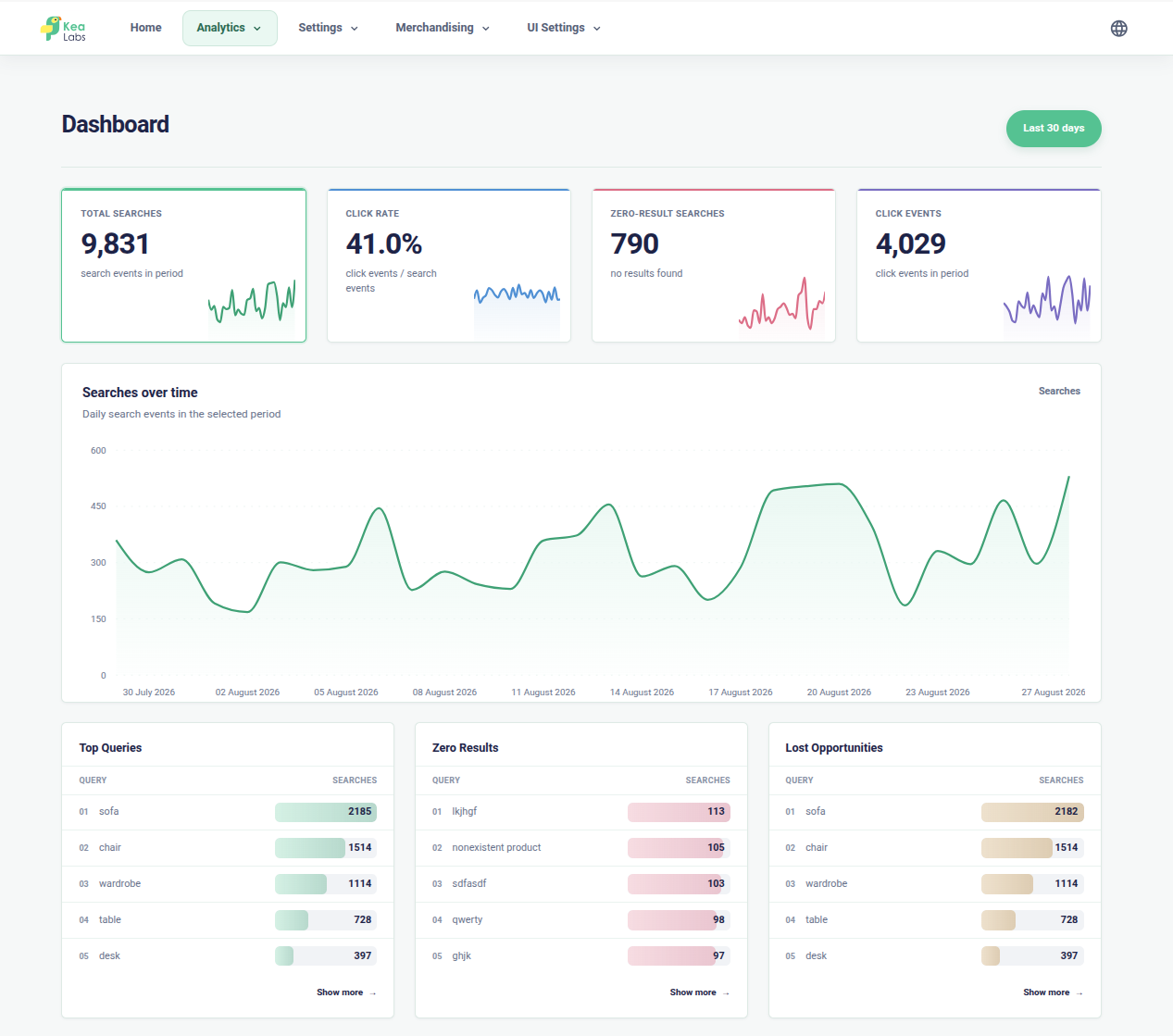
Analytics dashboard
Start with the signal, then open the query
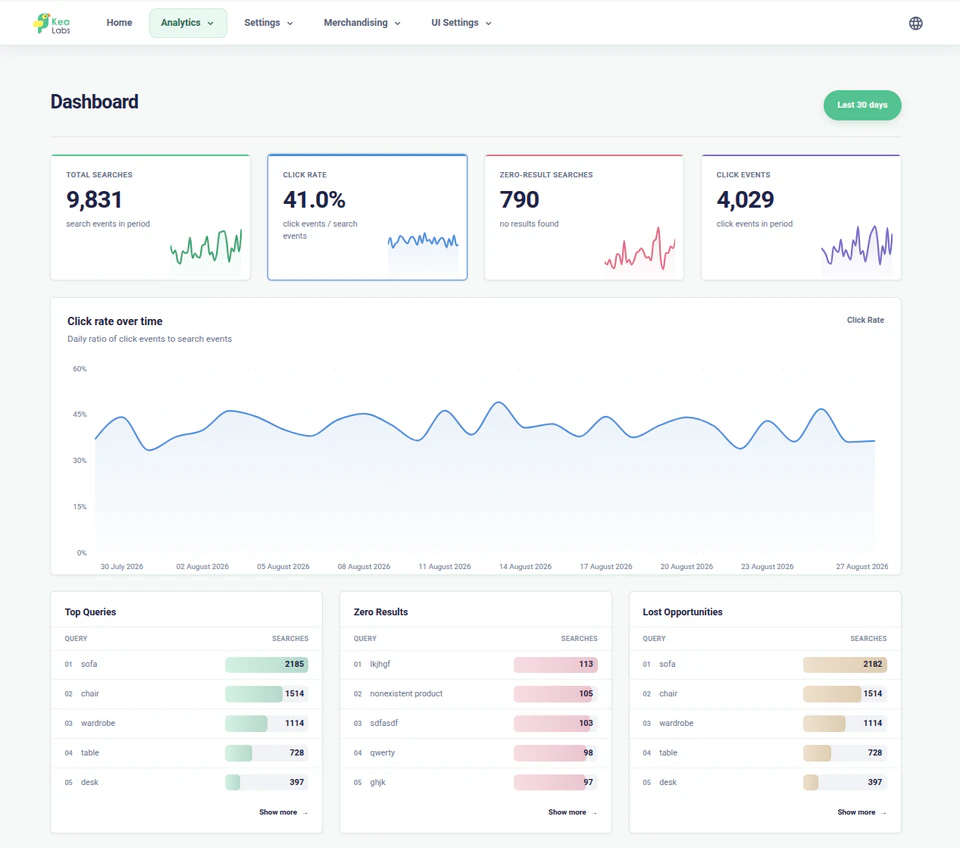
Choose a reporting period and see how search activity, product clicks, and zero results change over time. Open a report when a signal needs a closer look.
- Review searches and click events over the selected period.
- Compare clicks with searches through the click rate.
- Spot zero-result demand before opening individual queries.
- Move from a summary to the product or query behind it.
Search reports
Each report leads to a different action
See demand, find search failures, catch weak engagement, and identify popular products. Each report leads to a concrete action.
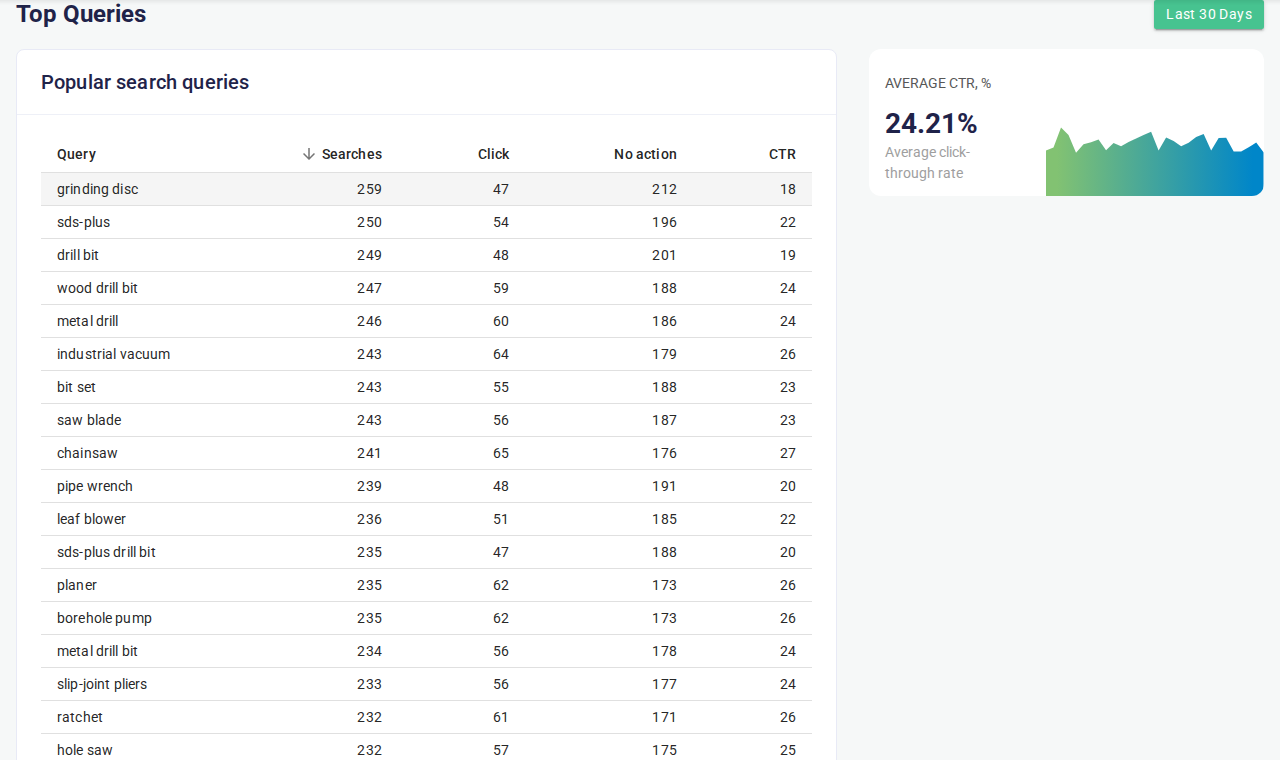
- See exact shopper queries ranked by search volume.
- Check whether top queries lead to useful products and filters.
- Go from a query directly to a merchandising rule draft.
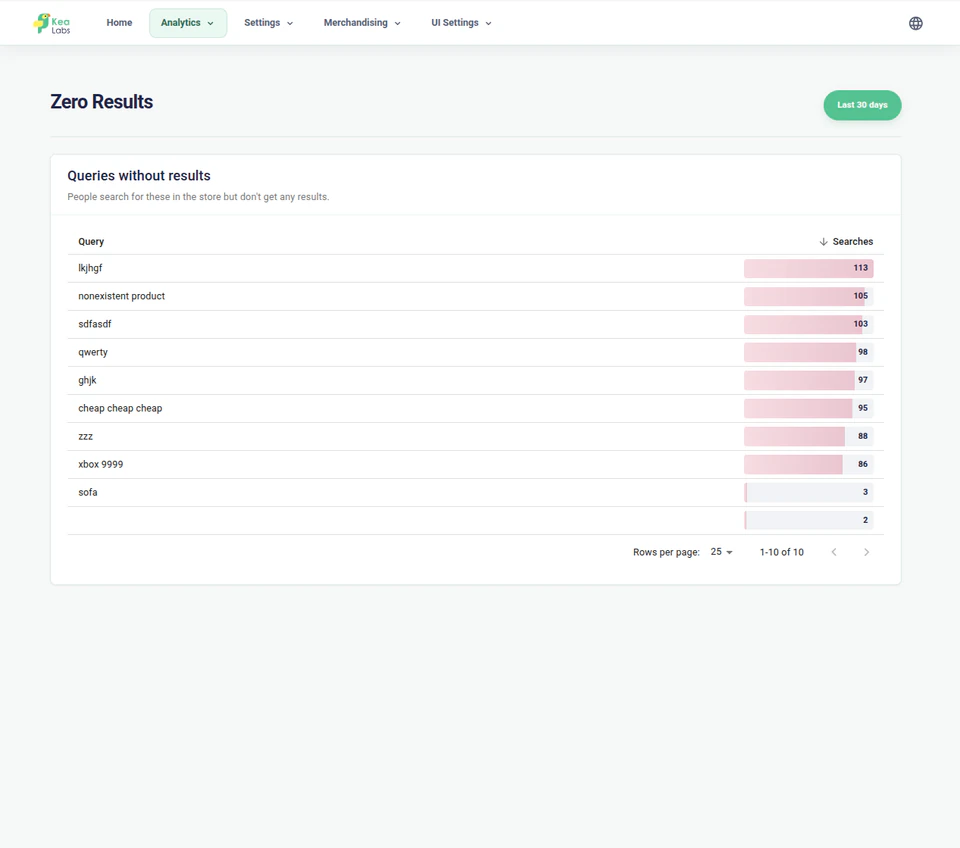
- See which queries returned zero products.
- Add synonyms, improve product data, or adjust searchable fields.
- Confirm whether the catalog genuinely lacks the requested products.
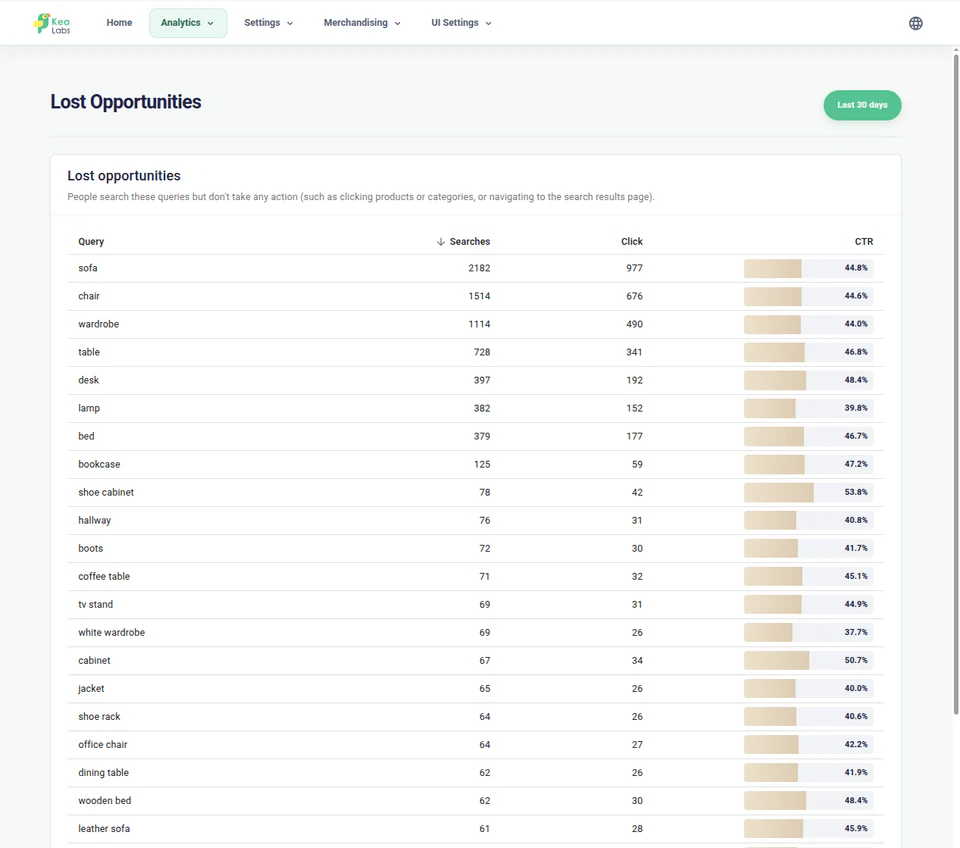
- See queries where products were shown but not clicked.
- Review relevance, product cards, and merchandising for weak queries.
- Identify where a merchandising rule can improve the results.
- Identify products that consistently attract shopper attention.
- Check that strong products remain visible for important searches.
- Use search-driven clicks to understand which demand the store already captures.
Top Queries
What shoppers search for most
Review ranking, filters, and merchandising for the searches that matter most.
- See exact shopper queries ranked by search volume.
- Check whether top queries lead to useful products and filters.
- Go from a query directly to a merchandising rule draft.
Zero Results
Where search returned nothing
Find searches that returned no products and take action on missed demand.
- See which queries returned zero products.
- Add synonyms, improve product data, or adjust searchable fields.
- Confirm whether the catalog genuinely lacks the requested products.
Lost Opportunities
Results with low shopper engagement
Find searches that returned products but led to little or no shopper action.
- See queries where products were shown but not clicked.
- Review relevance, product cards, and merchandising for weak queries.
- Identify where a merchandising rule can improve the results.
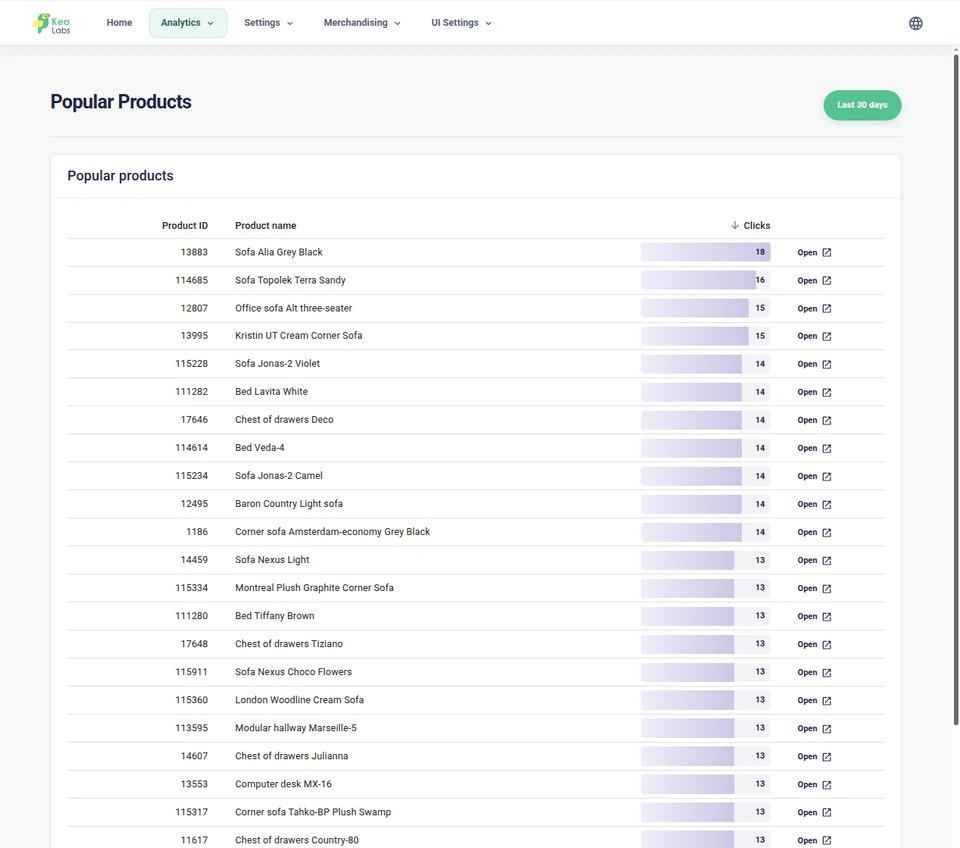
Popular Products
Products that attract search clicks
See which products receive the most search-driven clicks and which demand the search experience already captures.
- Identify products that consistently attract shopper attention.
- Check that strong products remain visible for important searches.
- Use search-driven clicks to understand which demand the store already captures.
Search reports
Inspect the query behind the numbers
Open full-size reports to review query performance, returned products, zero results, and search-driven product clicks.
Search activity over time
Review search volume, click rate, zero-result searches, click events, and report summaries from one dashboard.
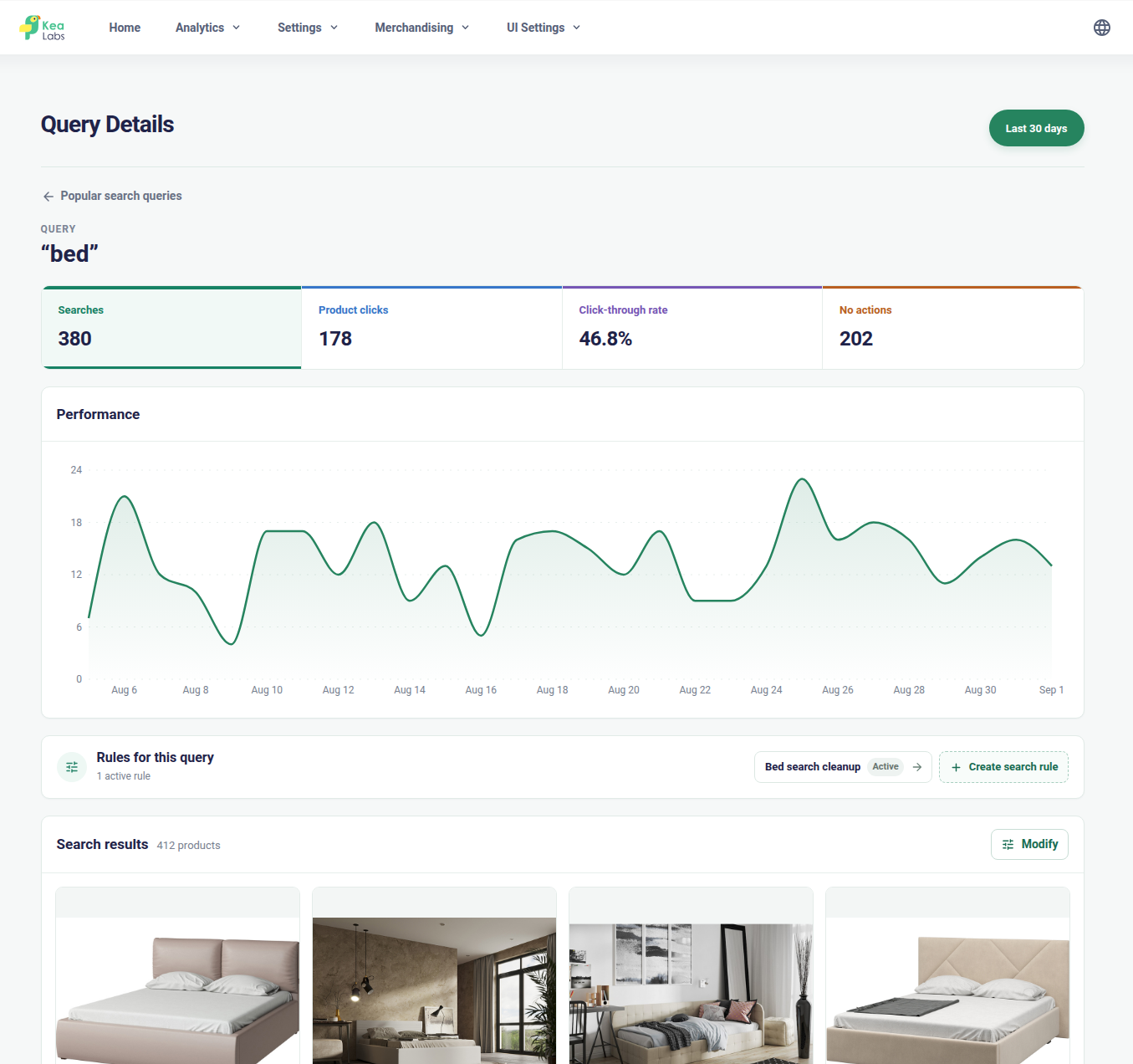
Performance of each search query
Review each query's searches, product clicks, click-through rate, trend, active rules, and returned products.
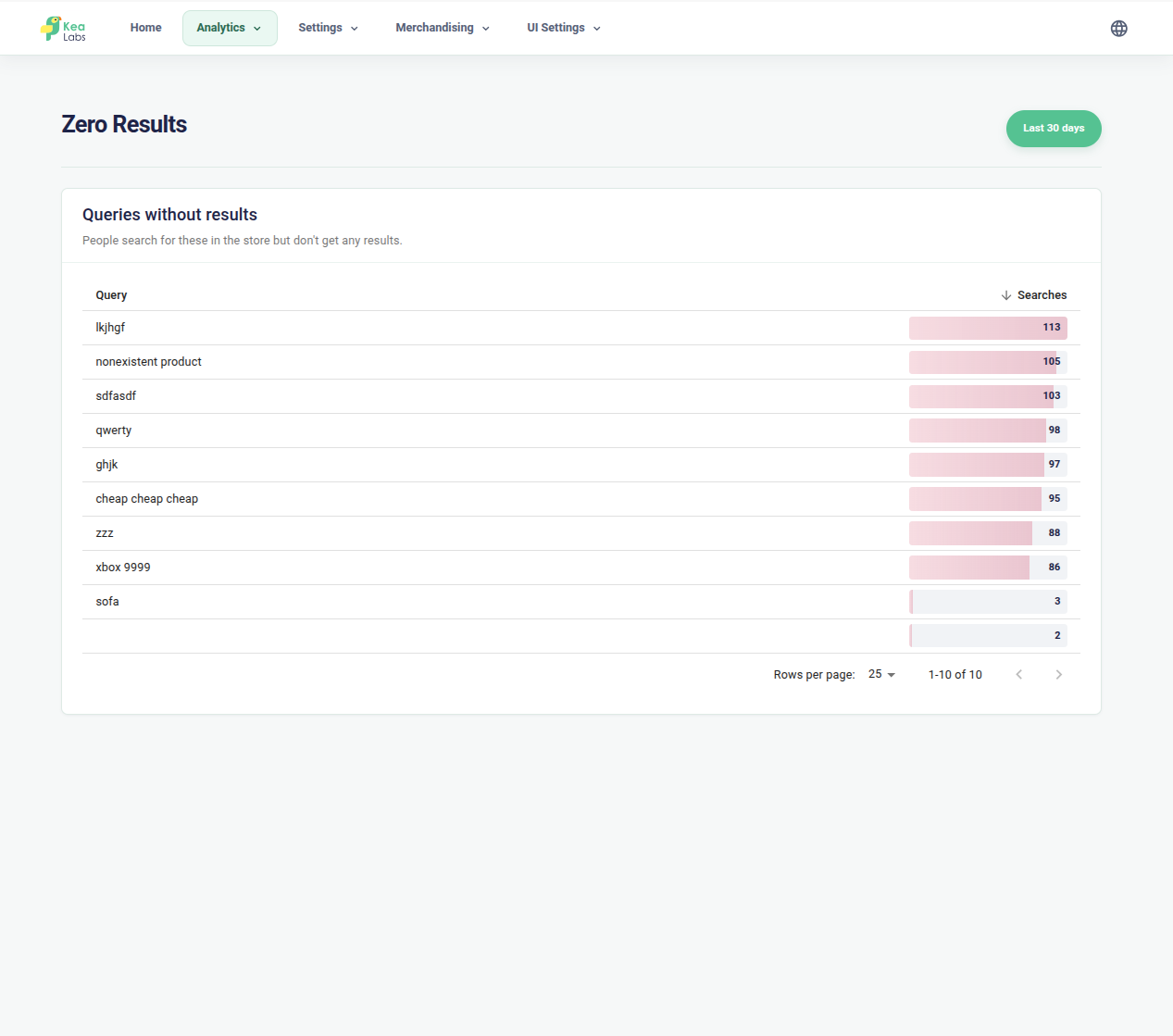
Zero-result searches
Find the exact queries that returned no products and prioritize them by search volume.
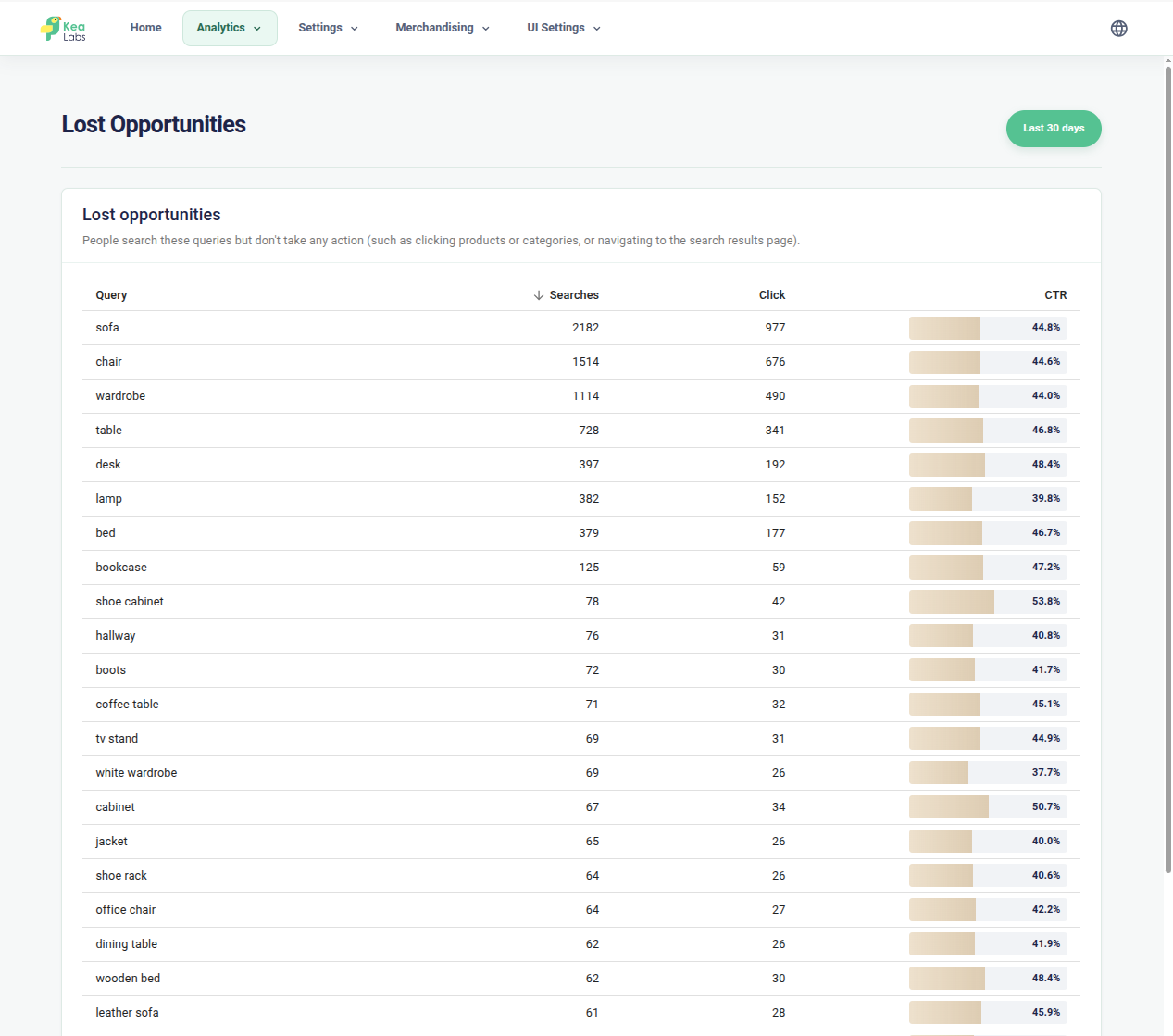
Lost search opportunities
Identify searches that returned products but earned weak engagement by comparing searches, clicks, and click-through rate.
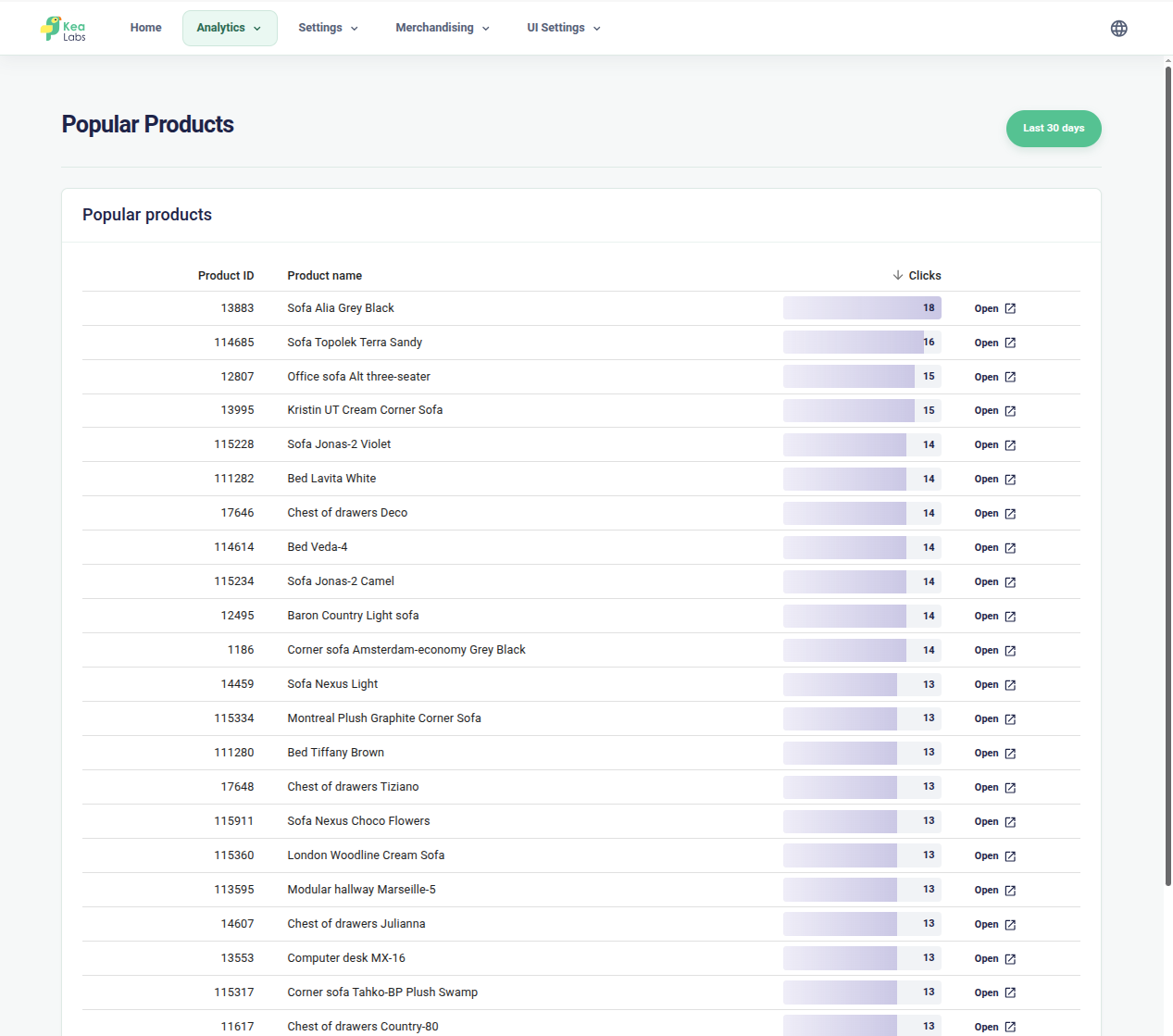
Popular products from search
See which products shoppers open from search results and compare their search-driven click volume.
From signal to action
Turn search signals into action
Different search problems need different fixes. Zero-result queries can lead to synonyms or better product data, while important low-engagement searches can become merchandising rules.
- Add a synonym when shoppers use wording the catalog does not contain.
- Improve searchable product data when the catalog has the right product but search cannot identify it.
- Create a merchandising rule when an important query needs a different product priority.
- Preview rule changes before publishing them.

In your WooCommerce store
Give the reports a place in your weekly search review
Choose one issue, make a focused change, and return to the query after shoppers have used the revised experience.
- 01 Choose a query worth improving Start with frequent demand, a zero-result search, or products shown without useful click activity.
- 02 Check the cause Inspect returned products and catalog wording. A missing product, weak match, or unclear card needs a different response.
- 03 Prepare the right change Connect equivalent vocabulary with a synonym, improve searchable data, adjust a product priority, or refine the card.
- 04 Review the result Preview the proposed experience, publish the approved change, and compare query results and click activity over a relevant period.
WooCommerce search analytics FAQ
Which WooCommerce search reports are included?
Kea Labs Search Pro includes Top Queries, Zero Results, Lost Opportunities, Popular Products, and a dashboard of search activity and click events.
Do search clicks prove that a shopper purchased?
No. Search and click counts describe storefront events. They do not establish identified shoppers, sessions, completed orders, attributed revenue, or a causal conversion lift.
Can analytics lead directly to merchandising?
Yes. Important queries can become merchandising drafts when product priority is the issue. A catalog gap or a vocabulary mismatch may need a different fix, so inspect the cause first.