
WooCommerce search merchandising
Put the right products first

Your product priorities, visible in search
Use exact-query rules, product conditions, and category priorities to shape the result order while shopper filters and store visibility continue to apply.
Merchandising in action
Work with products, then inspect the result
Arrange an exact-query result, set category priorities, build product rules, and choose the products shown before a query.
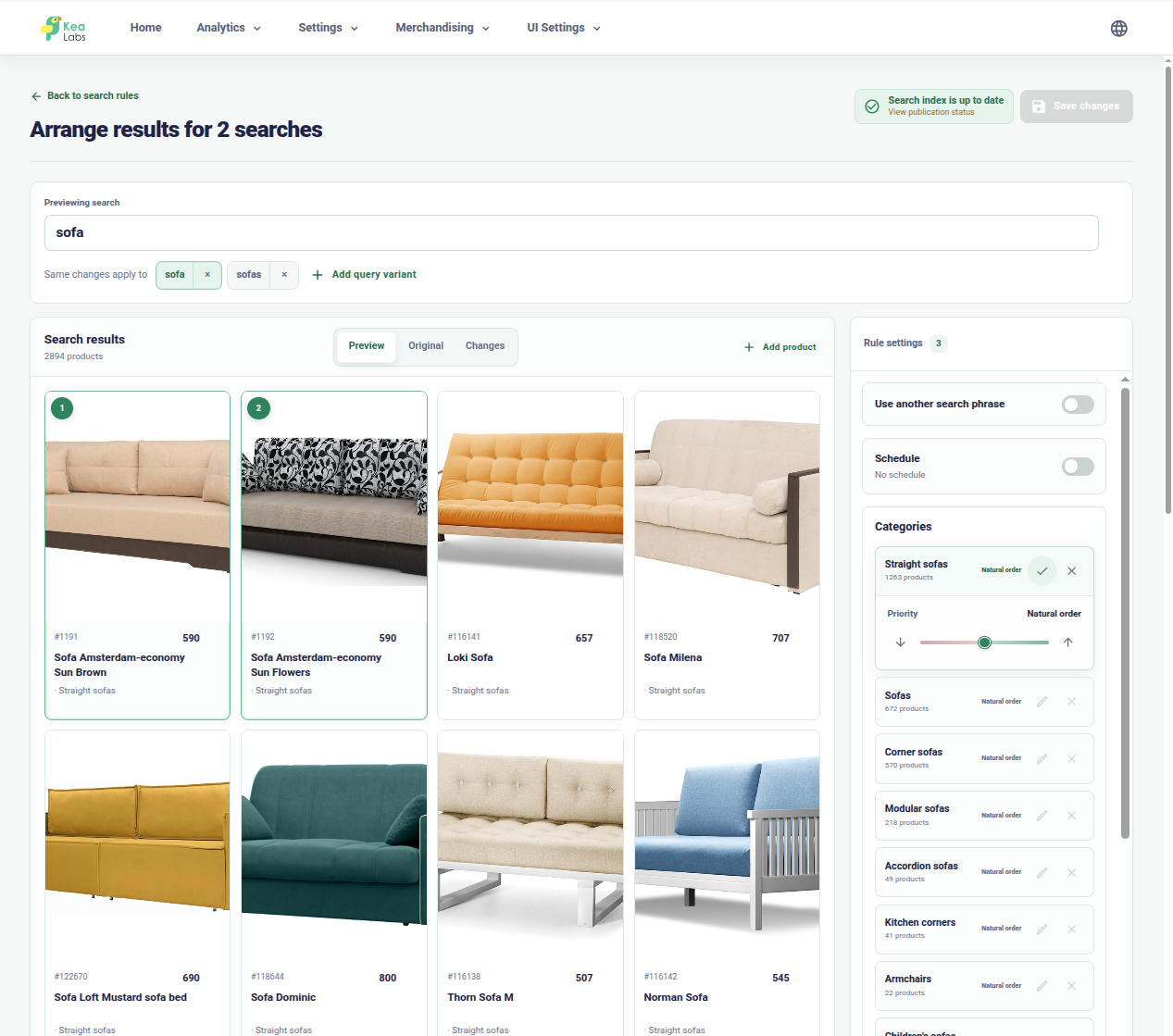
Arrange results for important queries
Drag products into preferred positions, compare Preview with the original order, and apply the rule to related queries.
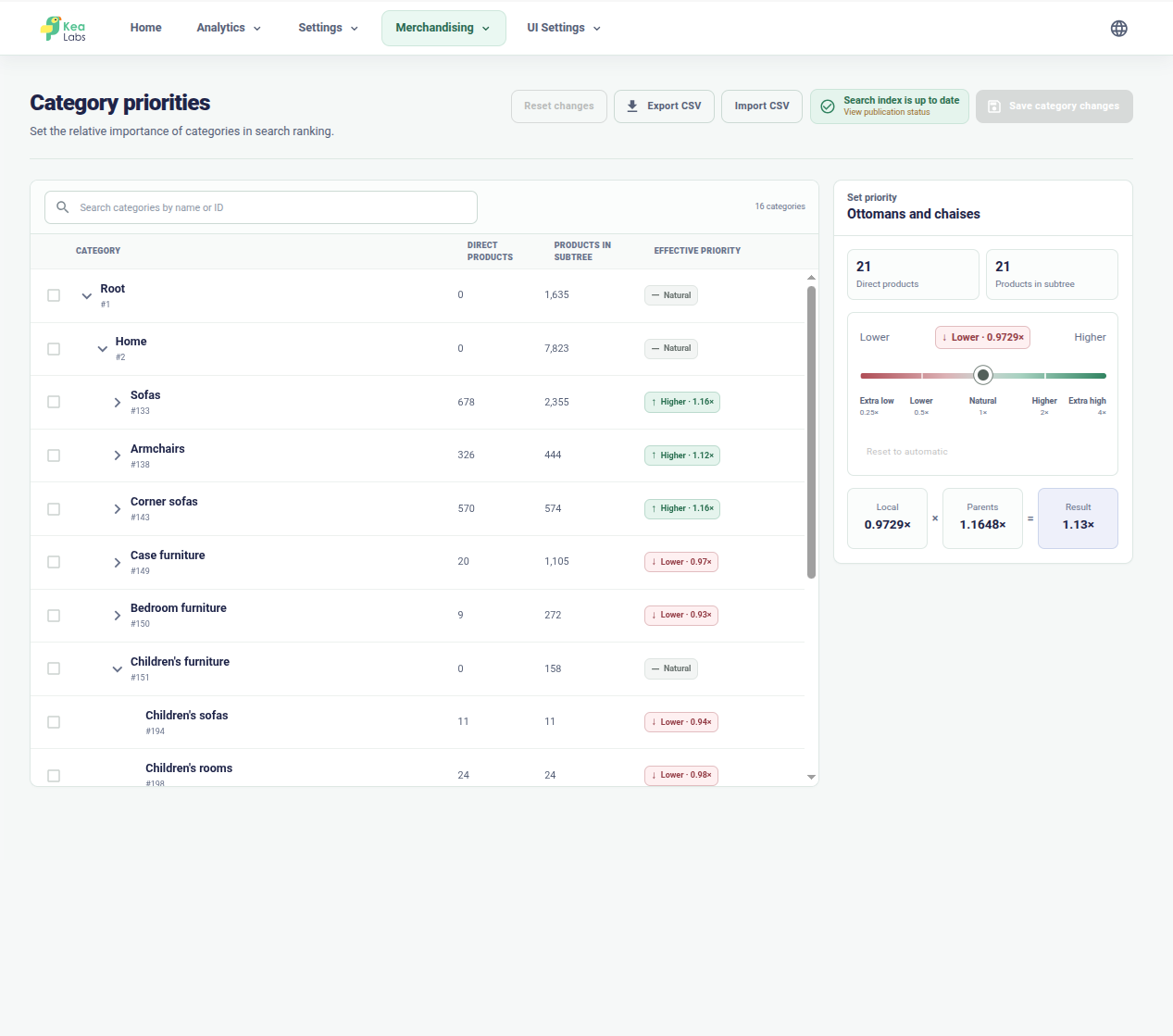
Set category priorities at scale
Raise or lower the relative influence of catalog categories while keeping the complete category tree visible.
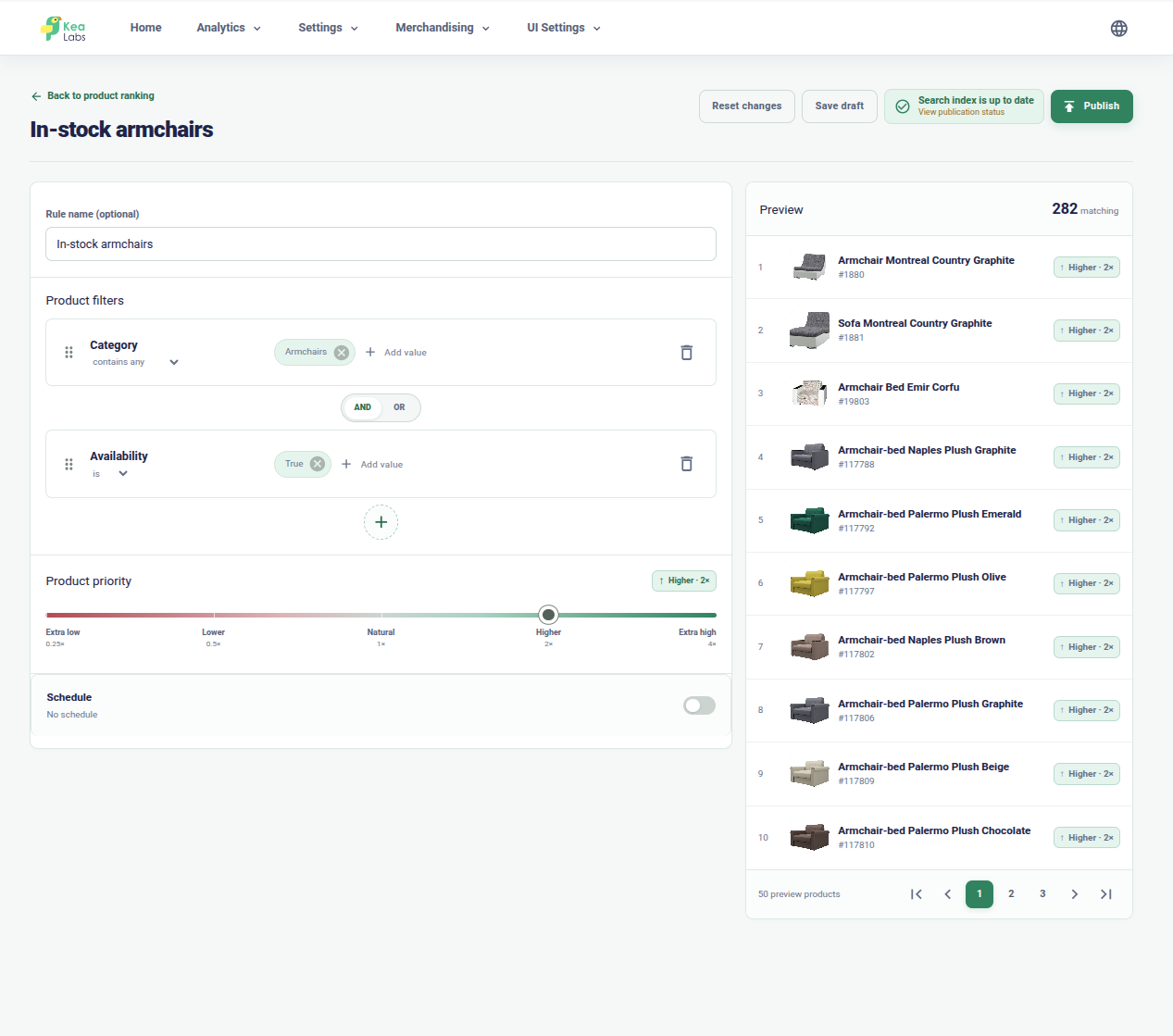
Build product ranking rules
Combine category and availability conditions, set product priority, and inspect the matching products.
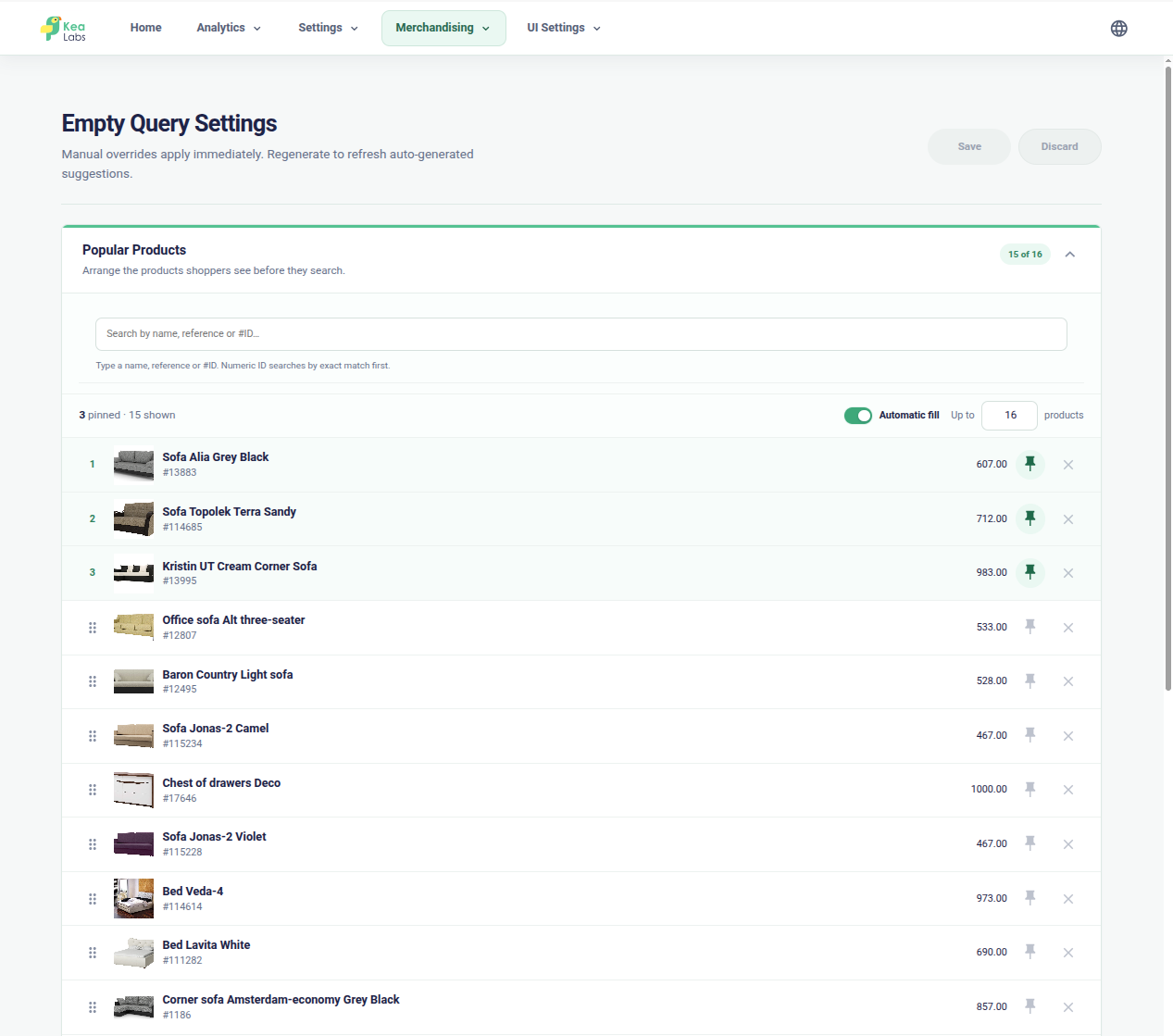
Shape the empty search state
Choose and order the products shoppers see before they enter a query.
Merchandising rules
Control what shoppers see for important searches
Use precise query rules for campaign searches, broader product rules for ongoing priorities, and hide actions for products that should not appear.
Exact-query rules
For a query such as “summer sale”, pin selected campaign products at the top or limit the rule to products that already match.
Product rules
Boost or bury products that meet defined conditions. A factor above 1 raises their score; a factor below 1 reduces it.

Hide rules
Remove a product from results for an exact query when it should not be shown, without bypassing store visibility safeguards.
Category priorities
Give products from strategic catalog categories more or less influence while relevance still determines whether they match.
Predictable rule precedence
Specific-query rules take priority over broader product rules. Hide takes priority over pin and score adjustments.
Preview and explain
Compare the change before shoppers see it
Run a shopper query and compare the original ranking with the proposed order. Preview and explanation views show which products moved, which were hidden, and which rule caused the change.
- Compare natural and adjusted results before activating the rule.
- Inspect the rule responsible for each product movement.
- Keep drafts inactive while your team reviews the result.
- See when a score change needs reindexing before it takes effect.

Relevance guardrails
Business rules, not a replacement for relevance
Exact-query pins can include selected eligible products or apply only to products that already match. Store visibility, shopper filters, and eligibility still apply.
Search engine
Relevance finds the products
The ranking engine analyzes the query and builds the natural result set before merchandising is applied.
Merchant control
Rules adjust business priority
Pin, boost, bury, hide, and category priorities change visibility according to explicit merchant rules.
Eligibility
Store safeguards remain enforced
Activity, shop and language visibility, shopper filters, category scope, and availability exclusions continue to apply.
When rules conflict, hide takes priority over pin and score changes. Specific-query rules take priority over broader product rules.
In your WooCommerce store
Build a campaign rule around a real query
For a furniture campaign, start with “sofa” and choose which eligible products deserve a prominent position.
- 01 Choose the query and products Open the actual query result and select products that fit the campaign and the shopper’s request.
- 02 Compare the proposed order Pin or adjust the priority, then inspect Preview, Original, and Changes before activation.
- 03 Check the rule’s boundaries Apply shopper filters, test product visibility, and try a different query to confirm the intended scope.
- 04 Review as the campaign changes Activate the approved rule and revisit it when the range, availability, or commercial priority changes.
WooCommerce search merchandising FAQ
Can I pin products for a particular WooCommerce search?
Yes. Kea Labs Search Pro includes exact-query merchandising rules for pinning and arranging products. Broader product rules and category priorities support other ranking goals.
Do merchandising rules ignore filters or product visibility?
No. Merchandising is a controlled layer over the search result. Shopper filters, eligibility, store context, and rule boundaries still apply.
Can I see why a product moved?
Yes. Preview and explanation views let the team compare natural and adjusted results and inspect the responsible rule before activation.