
Interface customization
Make search fit the storefront
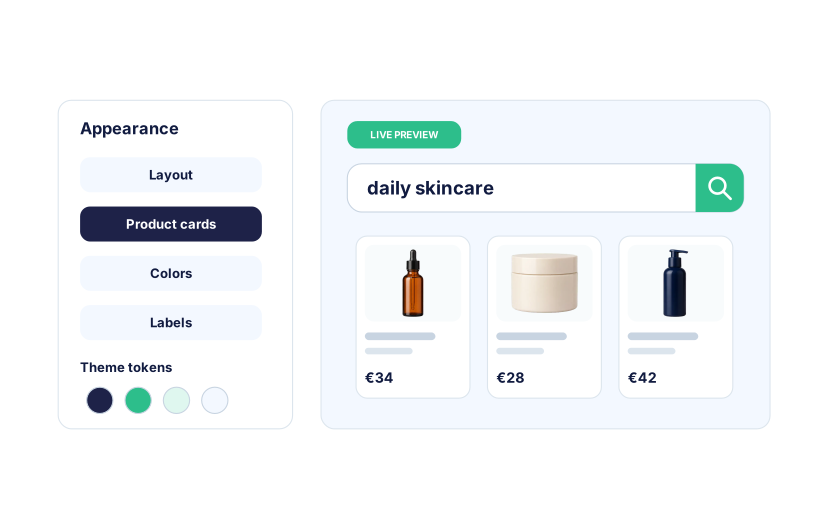
Back Office settings
Configure search without code
Start with presets and bounded controls in the Back Office. Adjust the interface without editing templates or rebuilding the search setup.
- Choose layout presets for the search widget and results page.
- Show or hide suggestions, categories, products, and facets summary.
- Control brand, price, original price, badges, and CTA visibility on product cards.
- Override supported button labels and no-results helper text.
- Reorder bounded sections and product-card fields where the layout allows it.
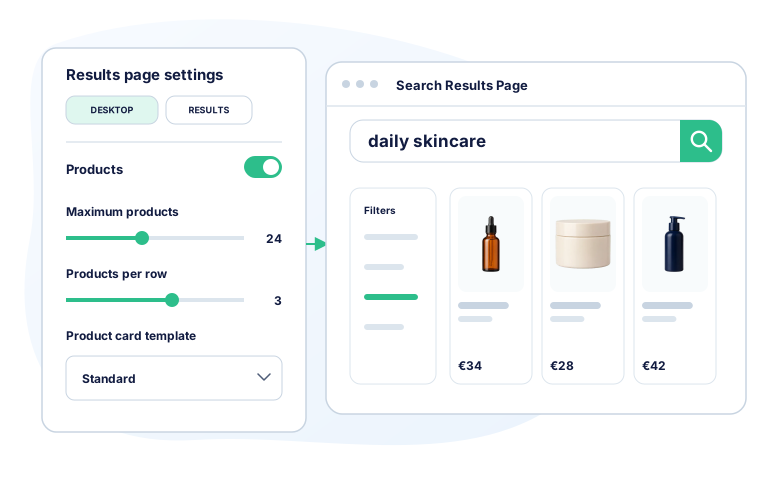
Product card customization
Choose a product card or build your own
Start with a standard or horizontal template. For complete control, use a custom HTML template with your own product data, styling, and supported interactions.
Packaged card templates
Choose a standard or horizontal product card for different storefront contexts.
Bounded content controls
Show, hide, and order supported fields such as brand, current price, original price, badges, and CTA.
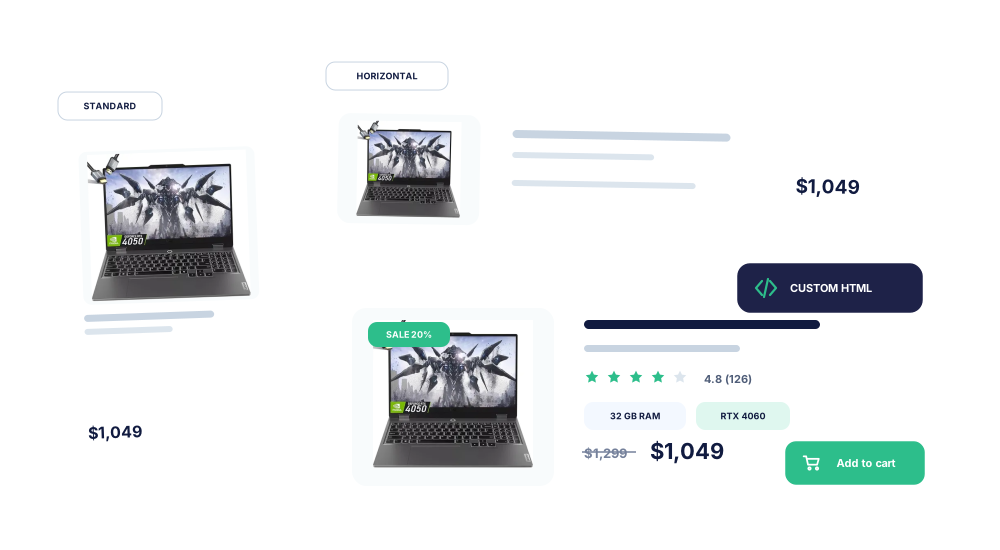
Advanced HTML template
Build a custom ProductCard with a safe Mustache-compatible HTML template and documented product data.
Extra fields and actions
Use registered extra field slots and data-kea-action markers for supported product interactions.
Developer surface
A documented customization API for developers
Agencies can style and integrate search through public contracts instead of reverse-engineering generated wrappers or internal component state.
kea-* public classes
Semantic styling
Documented classes address search, results, product cards, filters, and their semantic elements.
--kea-* theme tokens
Theme controls
Theme tokens control colors, typography, spacing, borders, grid gaps, and layout proportions.
data-kea-* markers
States and interactions
Mode, view, screen, breakpoint, roles, and supported actions are exposed through documented markers and hooks.
Generated framework classes are implementation details. Public classes, tokens, markers, and events are the supported integration surface.
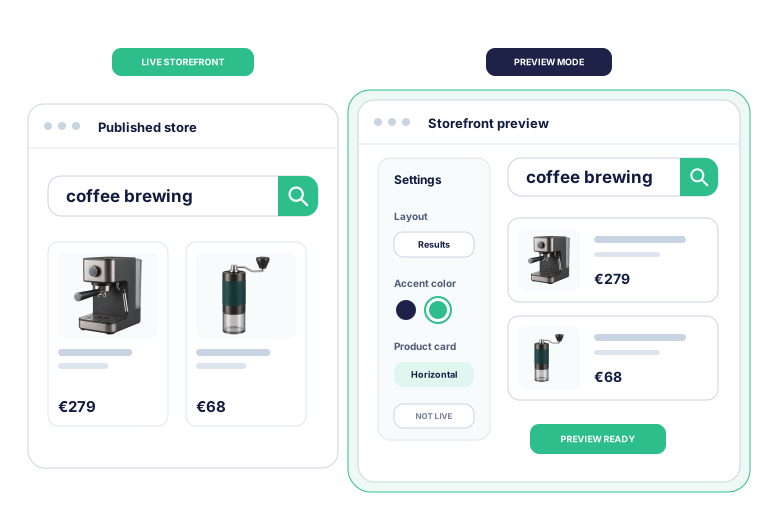
Preview mode
Review storefront changes before they go live
Change the layout, product cards, and styling in the Back Office, then test the updated storefront without changing what shoppers currently see.
- Compare the current storefront with the preview you are editing.
- Check suggestions, results, filters, product cards, and responsive layouts.
- Fix integration or template warnings before activation.
- Apply or discard preview changes when the new experience is ready.
Interface settings
See the storefront customization controls
Choose a layout, edit supported product-card fields, customize templates, and compare desktop and mobile previews.
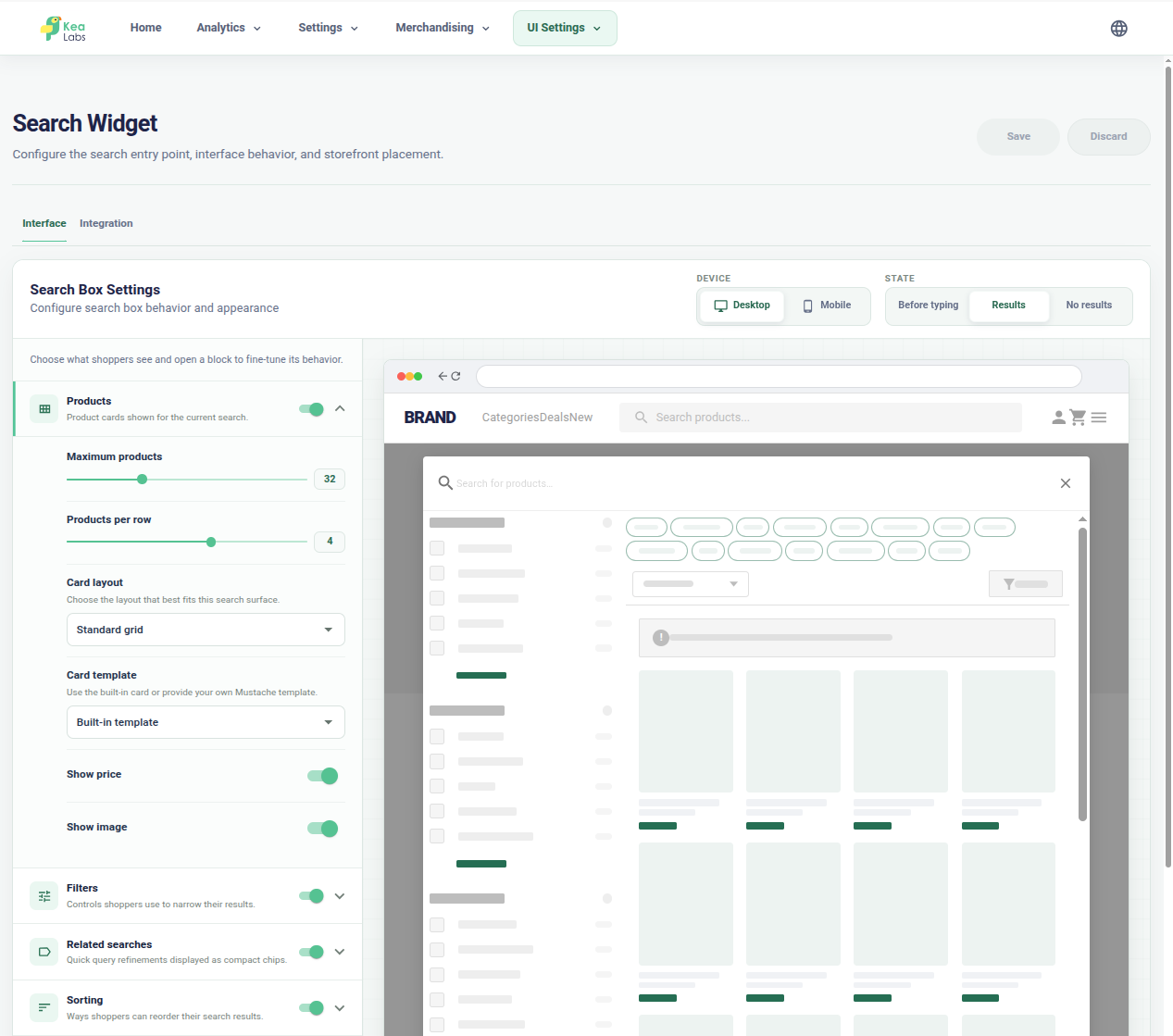
Edit beside the storefront preview
Configure sections, product details, layout, and behavior while the storefront result remains visible.
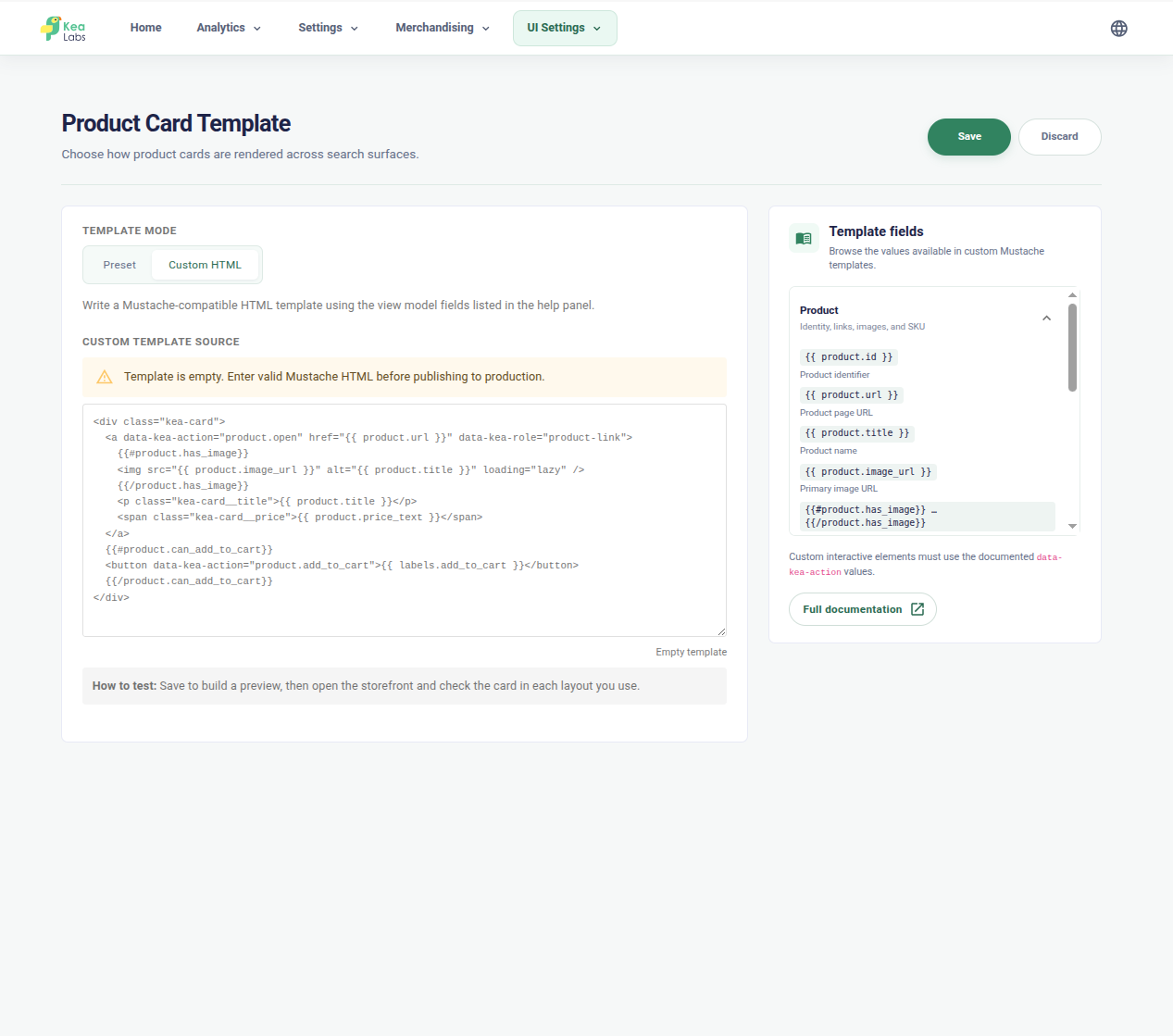
Customize product-card HTML
Use documented product fields and immediate validation when the packaged templates are not enough.
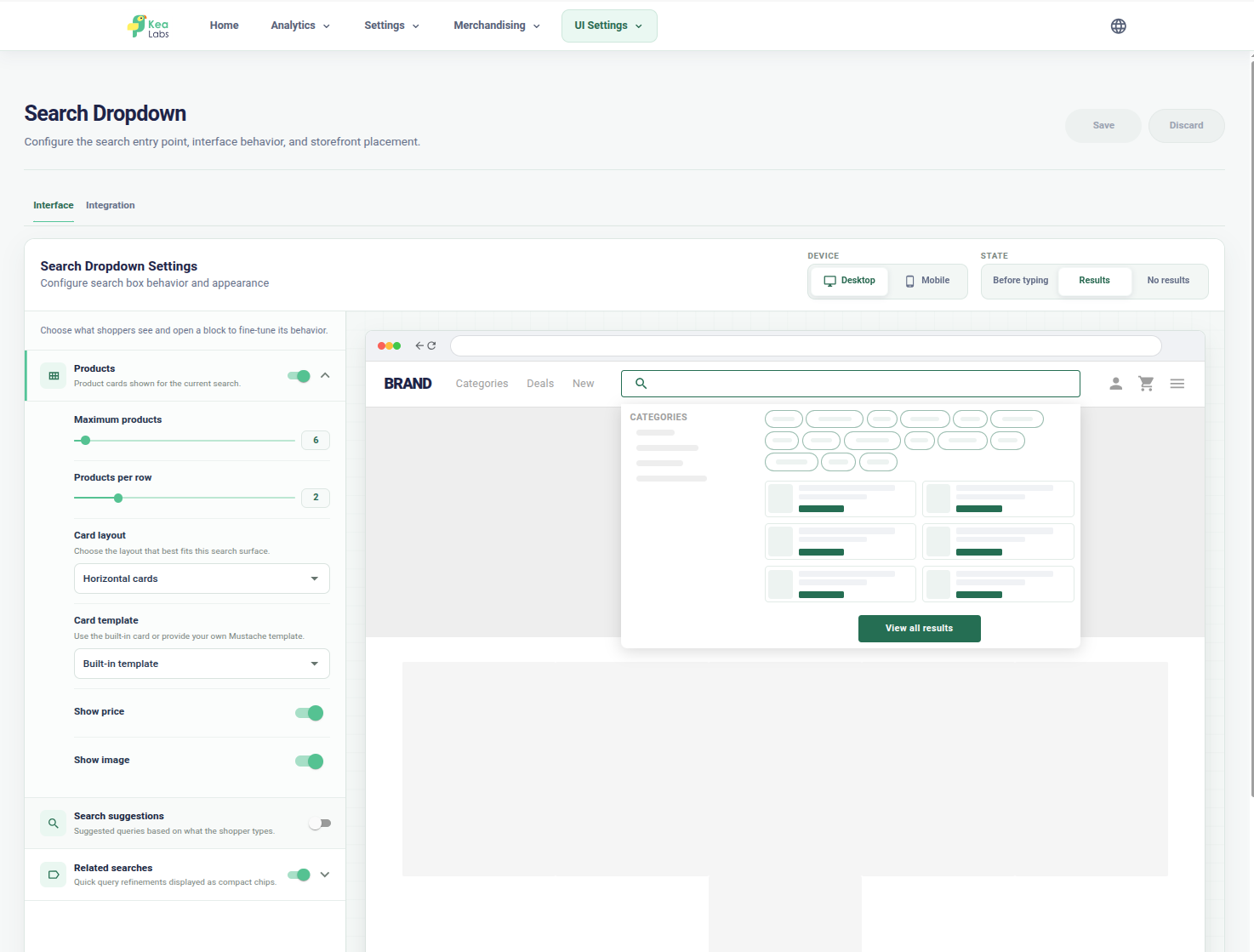
Preview the desktop dropdown
Check products, categories, suggestions, filters, and layout in the search dropdown before publication.
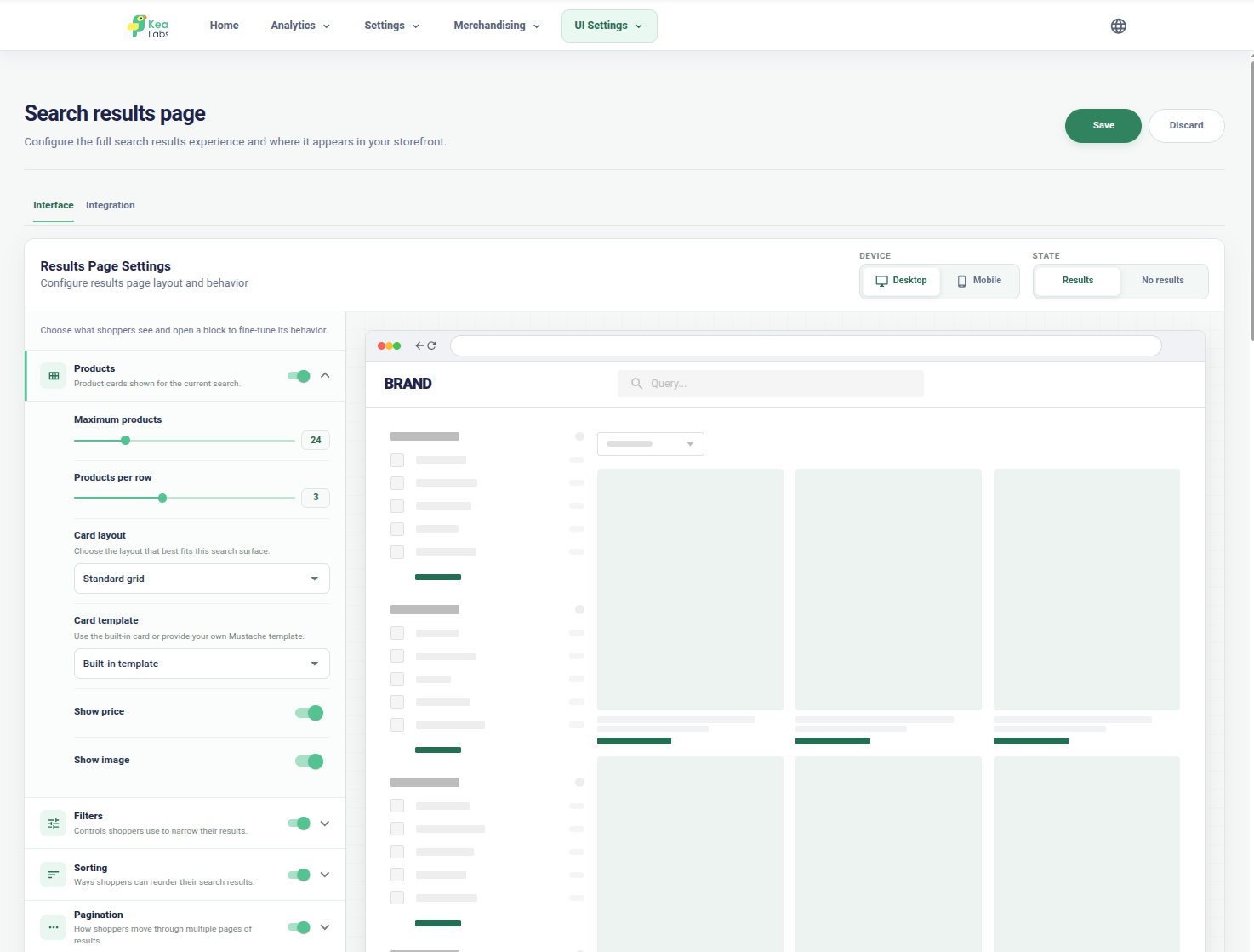
Preview the desktop results page
Configure the product grid, filters, pagination, product-card fields, and results-page layout together.
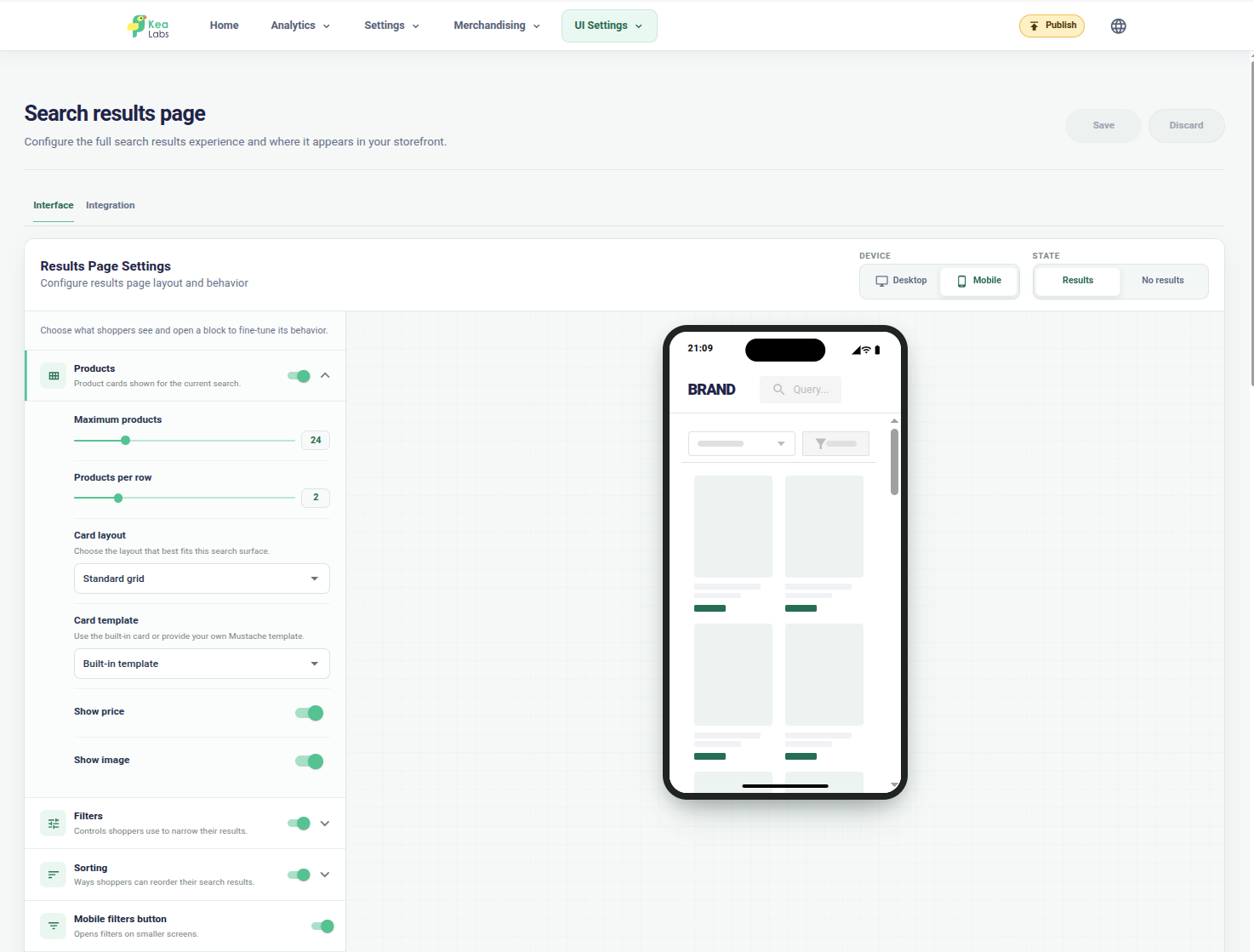
Check the mobile results page
Review the mobile product grid, filters, sorting, and product-card controls in the phone preview.
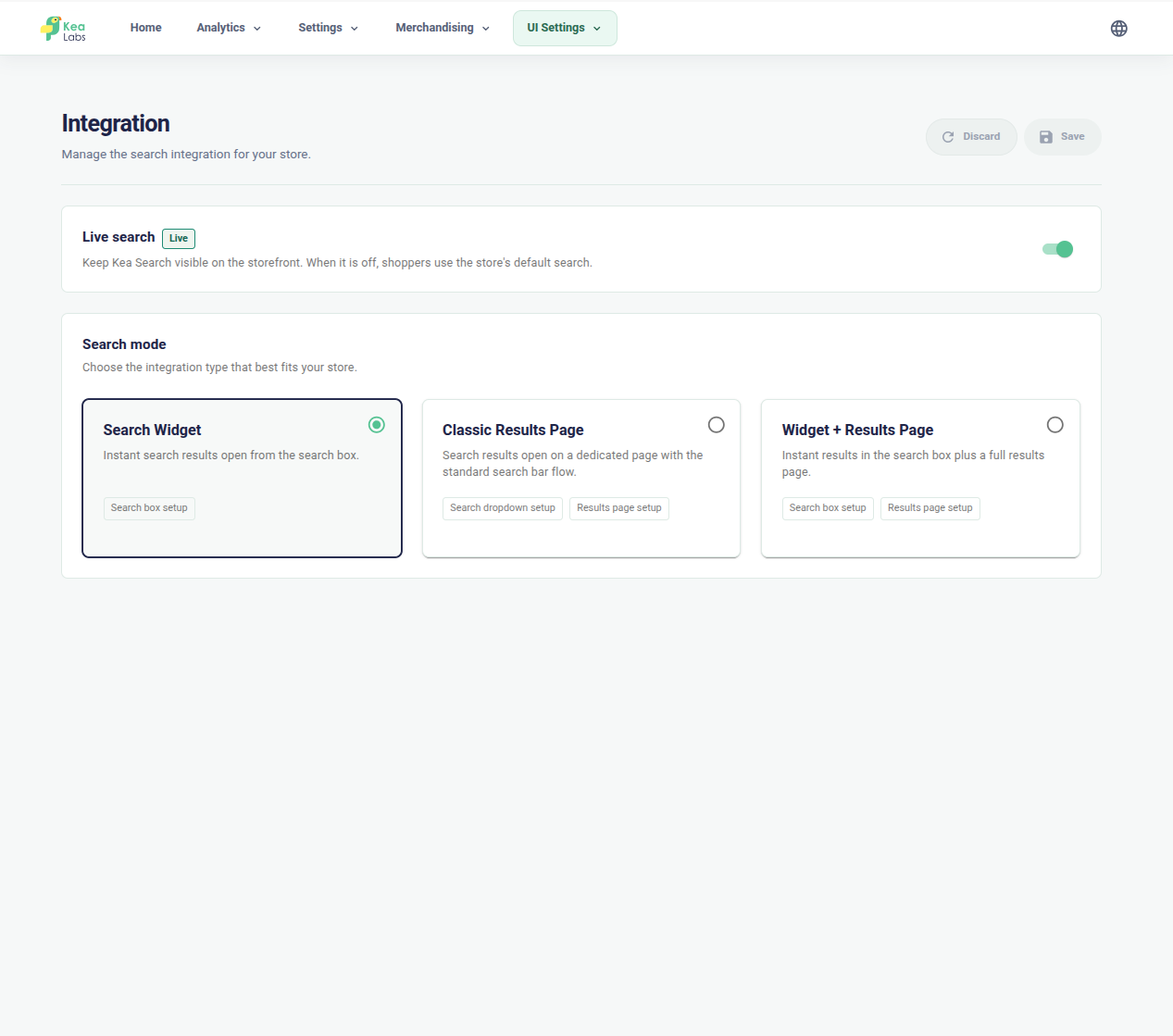
Choose a search layout
Use a search widget, a classic results page, or a combined widget and results-page experience.