
AI-assisted installation and setup
Let your AI install and set up Kea Search Pro
Your AI does the setup
Your AI installs and configures Kea Search Pro
Connect Claude Code, Codex, or another supported AI client to the store's MCP server. Kea Search Pro provides two reusable instruction packages, called skills: one handles setup and the other supports later improvements.
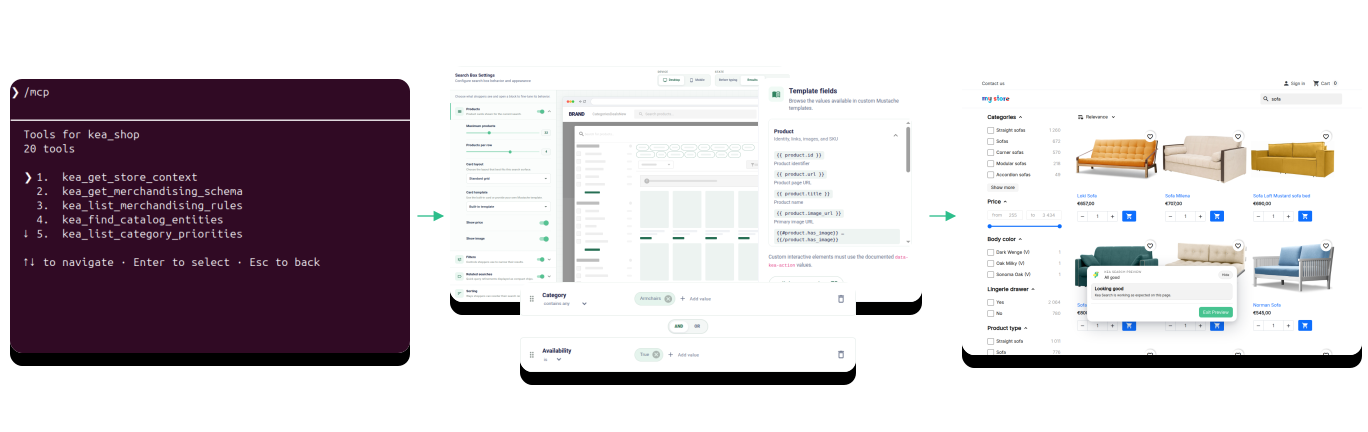
Recommended installation flow
Install, configure, preview, go live
The recommended way to start with Kea Search Pro lets AI handle the work while Preview keeps the decision with you. Nothing reaches shoppers until you approve it.
- 01 Start with your AI Add the Kea Search Pro setup and maintenance skills to a supported AI client and connect it to the store you want to configure.
- 02 Install and configure Let the AI install Kea Search Pro, inspect the catalog, and configure search, categories, facets, synonyms, and merchandising.
- 03 Review in Preview Check the complete search experience, responsive layouts, filters, product cards, and store actions before anything goes live.
- 04 Approve and go live Publish only when you are satisfied, then let the workflow verify the live storefront again on desktop and mobile.
Connect your AI
Connect two AI skills to your store
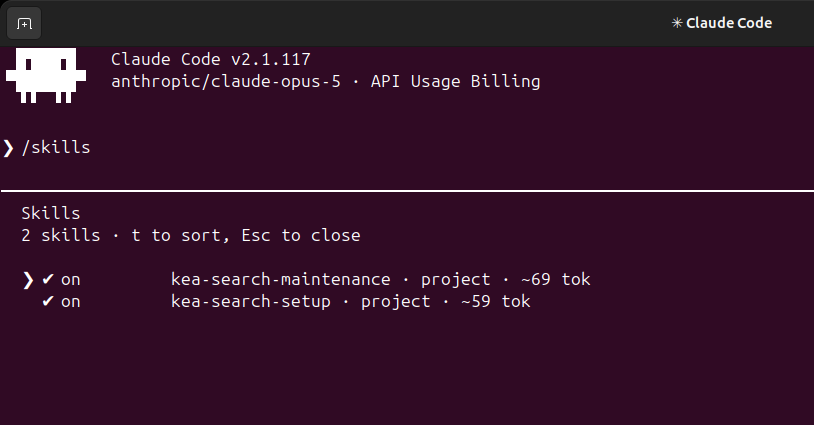
Setup handles installation and configuration. Maintenance handles later improvements through the same store connection.
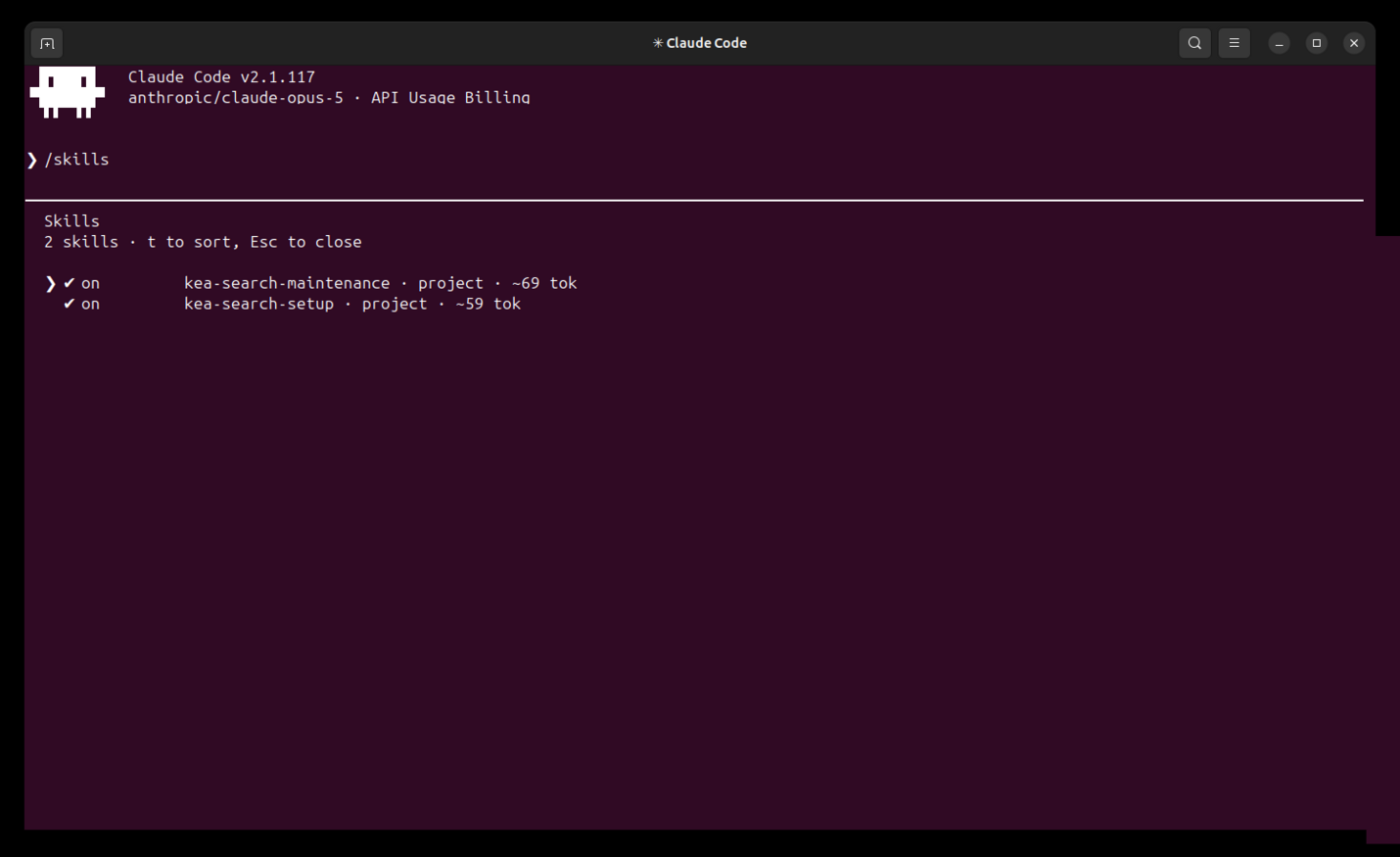
Setup and maintenance skills
Claude Code lists kea-search-setup for initial configuration and kea-search-maintenance for ongoing search work.
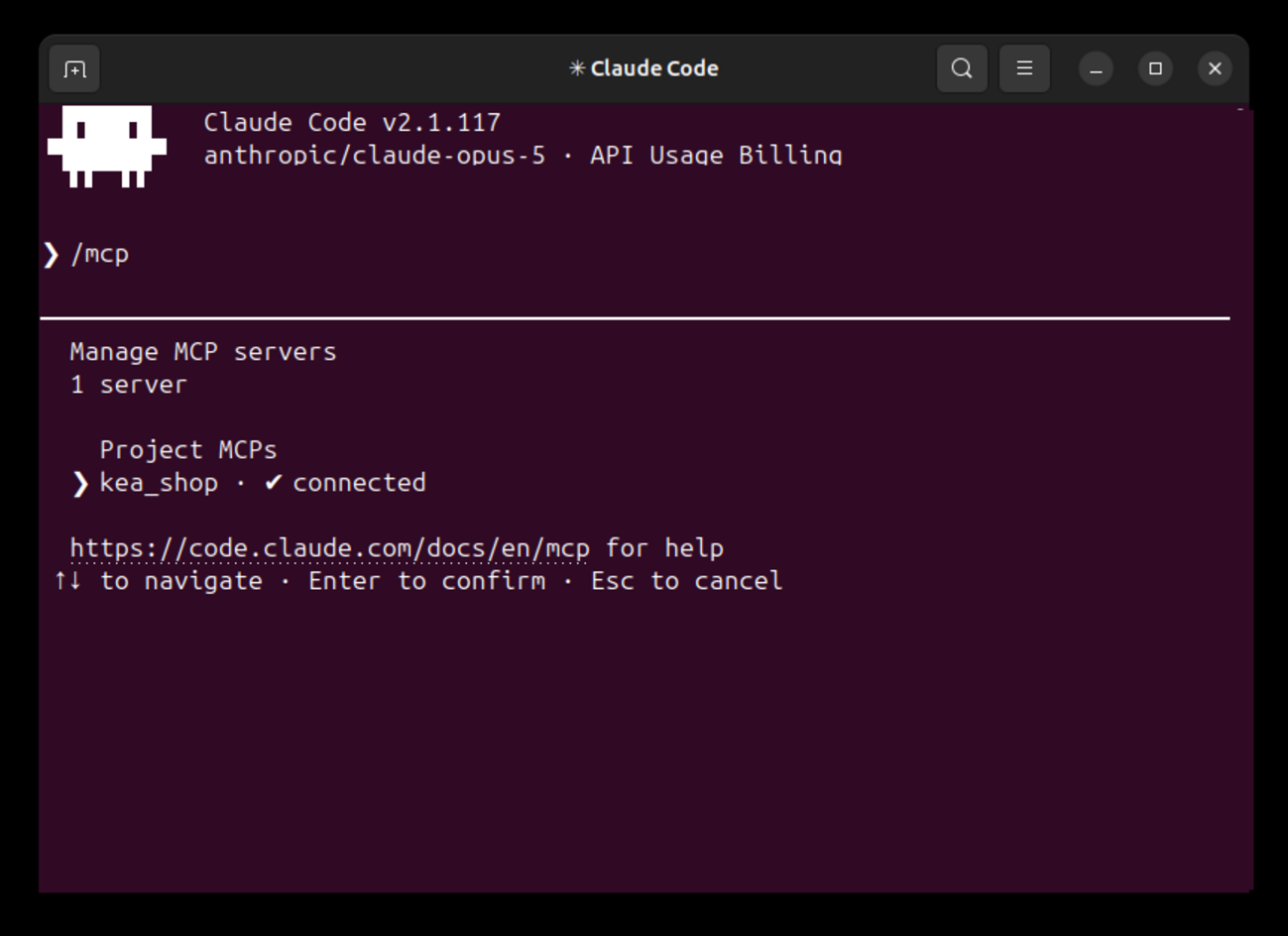
The store MCP connection
Claude Code confirms the store connection before reading or preparing configuration.
AI-configured storefront
Review the search your AI configured
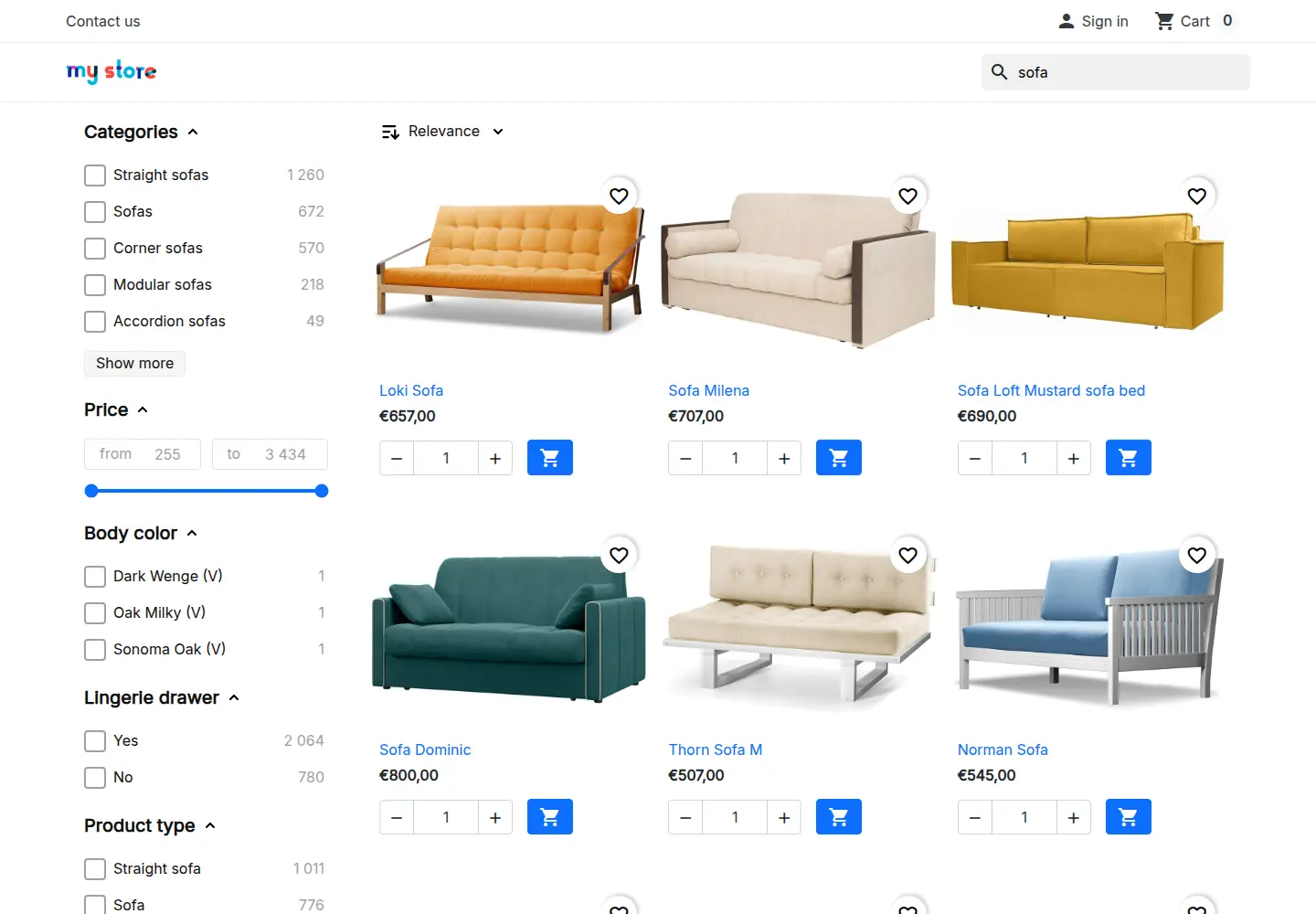
AI adapted Search Pro to Hummingbird and preserved the store's native actions. Preview kept the result away from shoppers until publication.
AI automatically adapted search to Hummingbird
The setup skill configured the layout, responsive cards, and native store actions. No manual storefront changes were needed.
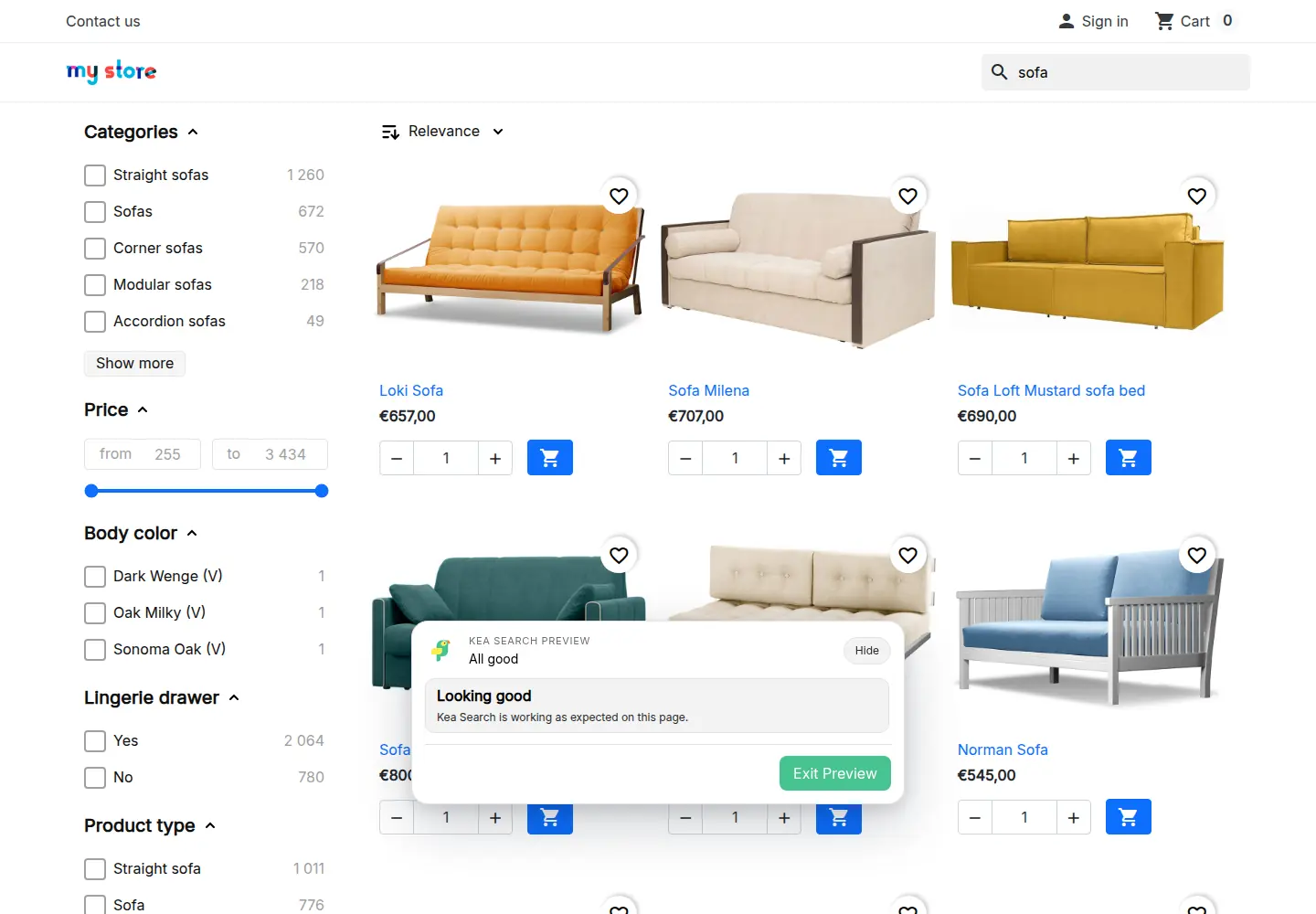
Review the complete storefront in Preview
Check products, filters, prices, responsive layouts, and native store actions while the published storefront remains unchanged.
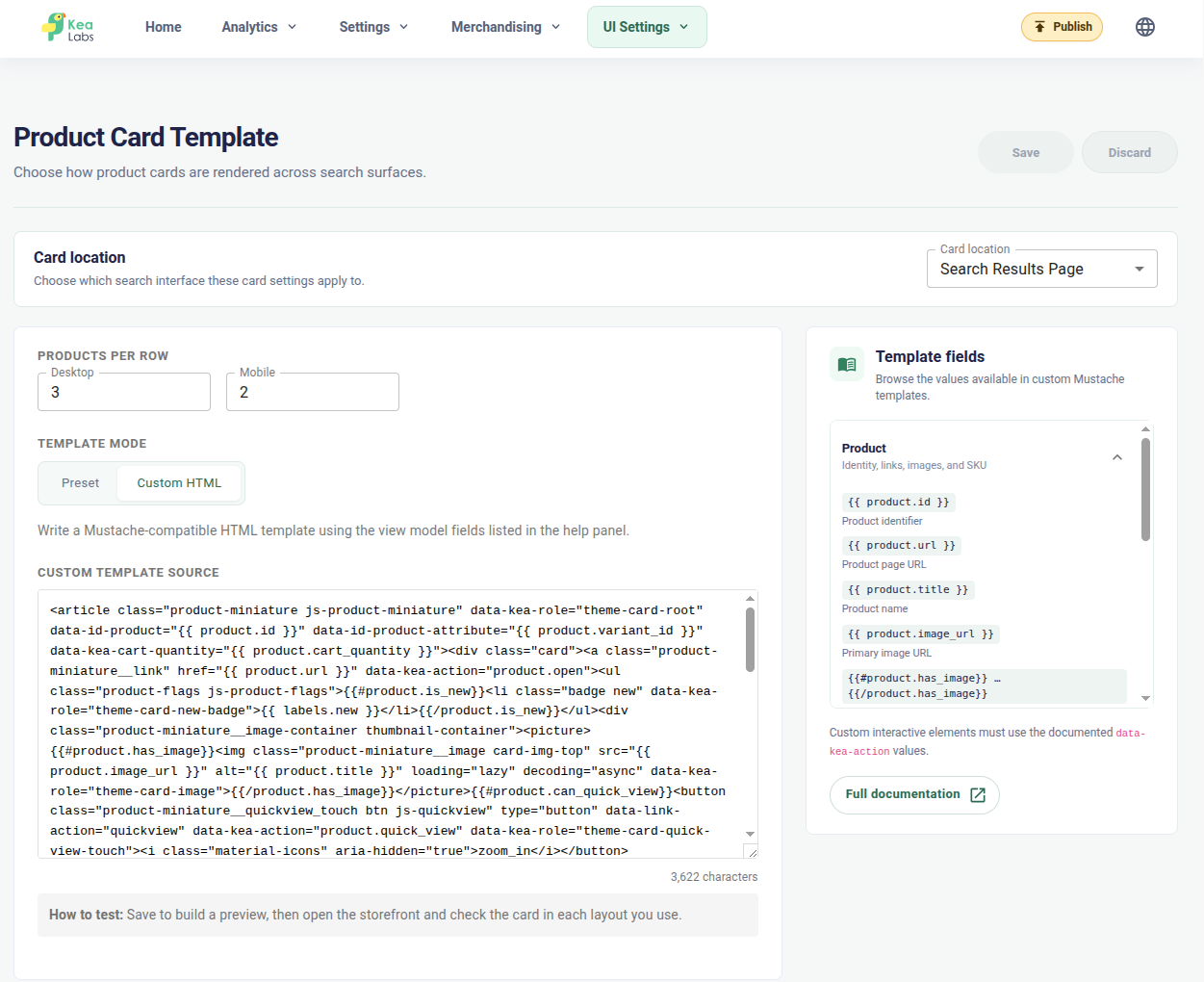
AI-generated product-card template applied
Inspect the Hummingbird Mustache template applied to the Search Results Page, including native product links, Quick View, quantity, Wishlist, and Add to cart hooks.
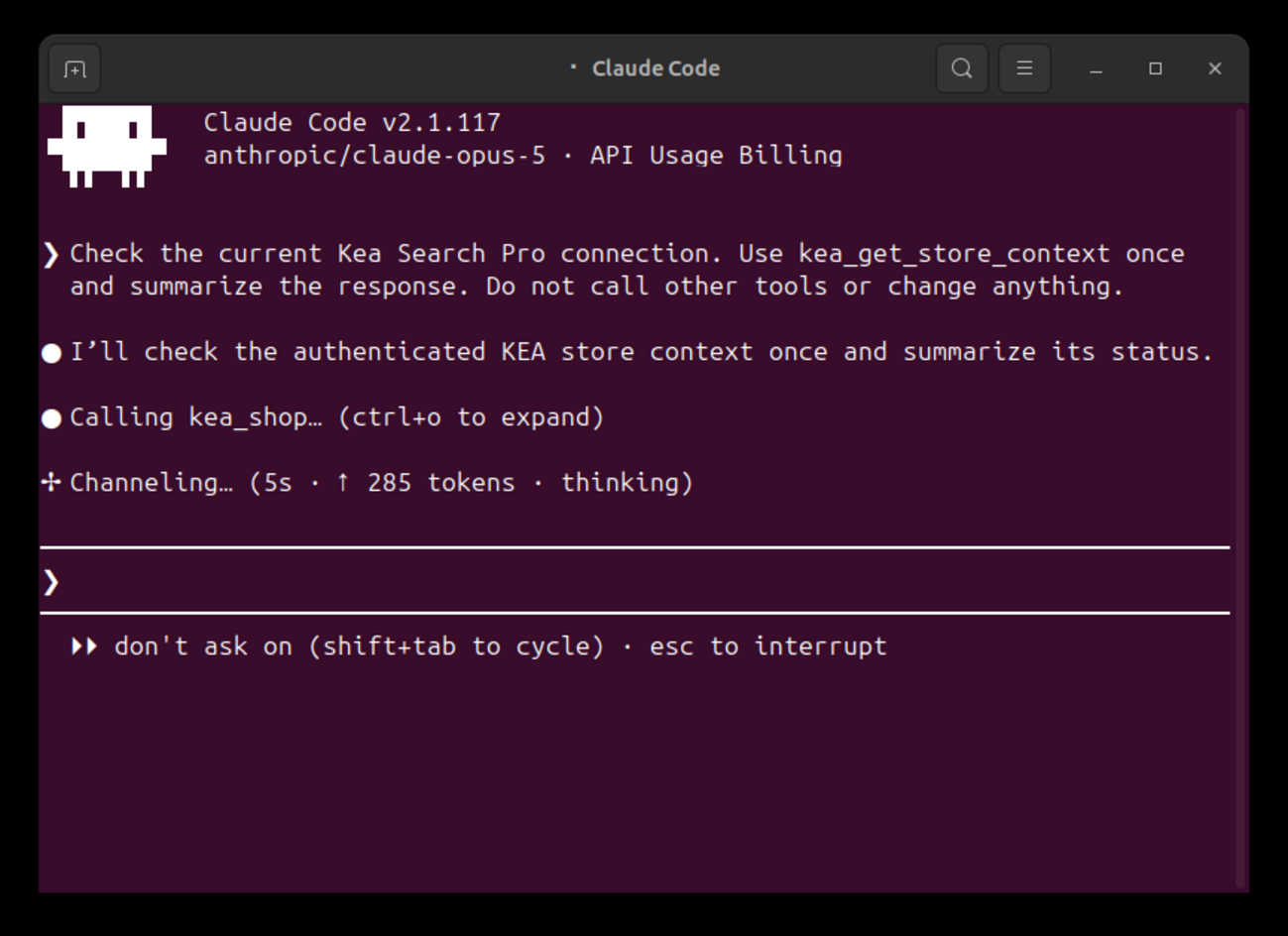
Claude starts from the connected store
Claude Code uses the authenticated Kea Search Pro connection to read the current store context before the setup skill prepares and applies configuration changes.
Search setup with AI
Let AI configure search and merchandising for your catalog
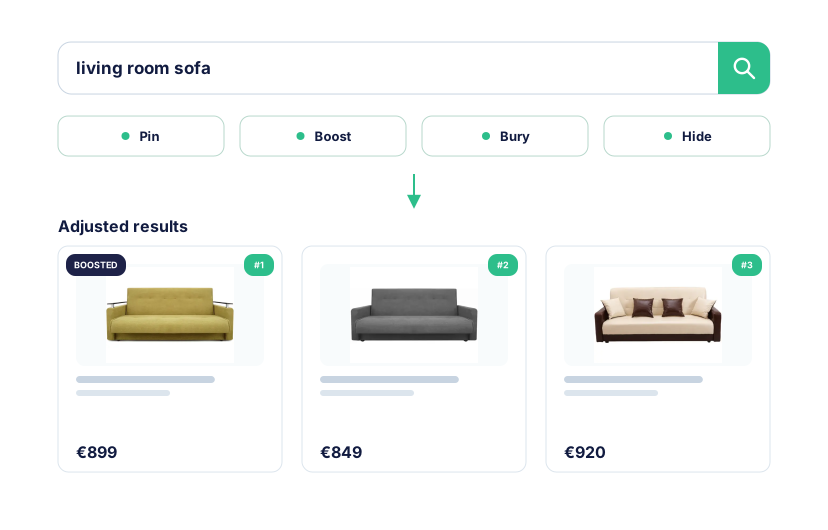
Your AI starts with the store's catalog, language, searchable fields, categories, and existing rules. It uses Kea Search Pro skills and authorized MCP tools to prepare settings that fit the store instead of applying the same generic configuration everywhere.
- Choose searchable product fields and their relevance priorities.
- Configure categories, storefront facets, and synonyms.
- Set category priorities and merchandising rules around the store's goals.
- Use search analytics when the store has enough shopper activity.
- Keep existing manual settings instead of replacing them with generic output.
Preview before launch
Keep the live store unchanged until you are ready
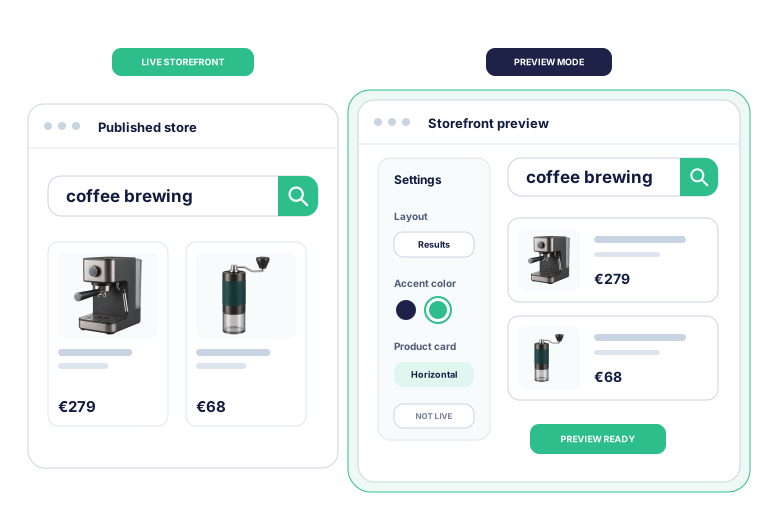
Preview is the recommended default. Your AI prepares and checks the proposed configuration on desktop and mobile while the live storefront stays unchanged. When you are satisfied, you approve publication and the process checks the live storefront again.
- Keep the live storefront unchanged while the AI prepares the proposed configuration.
- Review product images, links, filters, cards, and the product actions already available in the store.
- Publish only after an explicit approval.
- Use built-in self-diagnostics and preserve the native storefront if production verification fails.
Storefront customization with AI
Let AI adapt the search interface and product templates to your store
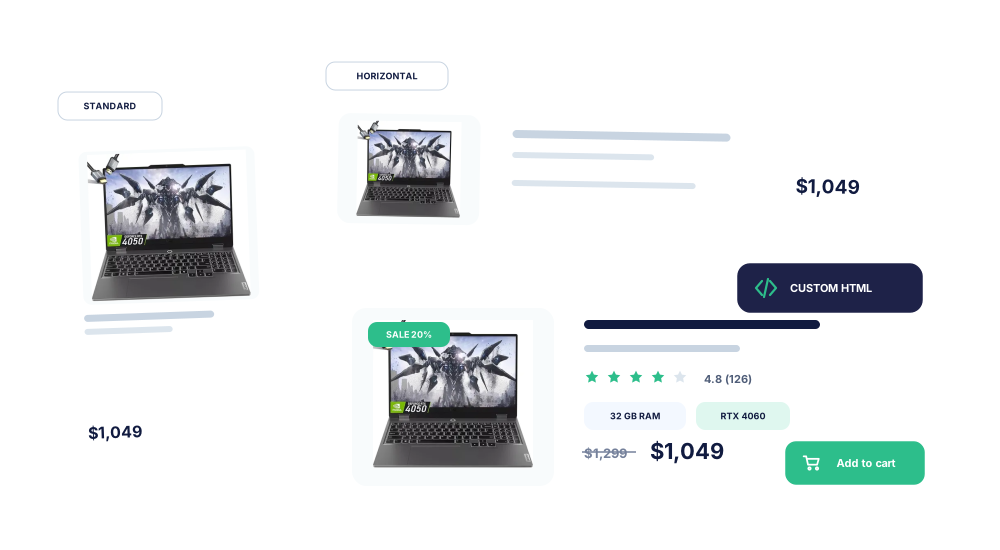
The workflow examines the store's current theme before changing the search interface. It adapts supported layouts, colors, responsive columns, and product-card templates so search feels like part of the existing storefront.
- Configure the search widget, classic results page, or a combined experience.
- Adapt desktop and mobile grids, filters, layouts, and product-card templates.
- Preserve supported add-to-cart, quantity, Wishlist, Quick View, price, and badge behavior from the theme.
- Keep the proposed configuration in Preview when the source structure cannot be adapted and checked safely.
AI-assisted Kea Search Pro setup FAQ
Installation, your AI client, search configuration, storefront customization, Preview, and publication.
Can I use ChatGPT, Claude Code, or Codex to install Kea Search Pro?
Yes, when the selected client supports the required MCP connection and store workflow. You use your own AI client and model account. Kea Labs provides the Kea Search Pro skills, controlled Search Pro tools, workflow, and compatibility guidance.
Can the AI install and set up Kea Search Pro from scratch?
Yes. The complete workflow can start with a fresh PrestaShop store, install Kea Search Pro, provision dedicated Search Pro access, inspect the catalog, configure search, adapt the interface, build Preview output, publish when instructed, and verify production.
What can the AI configure in search?
The supported workflow covers searchable fields, relevance priorities, categories, merchandising rules, category priorities, synonyms, storefront facets, search analytics, and the checks required before applying a change.
Can the AI customize the search interface to match the store theme?
Yes, for a supported theme structure. The process inspects a real category page and adapts layouts, responsive columns, colors, product-card templates, and observed native product actions. Hummingbird and Classic have each passed separate storefront checks.
Can I review everything before it goes live?
Yes. Interface changes default to Preview and are checked on desktop and mobile. Publication requires an explicit instruction, follows the normal review and publication process, and is followed by a fresh check of the live storefront.